Fusion Accounts Receivable
Last updated: 2/1/2026
Fusion Accounts Receivable
1. Receivables System Options configuration Implementation project >> Task 'Manage Receivables System Options' >> Create >>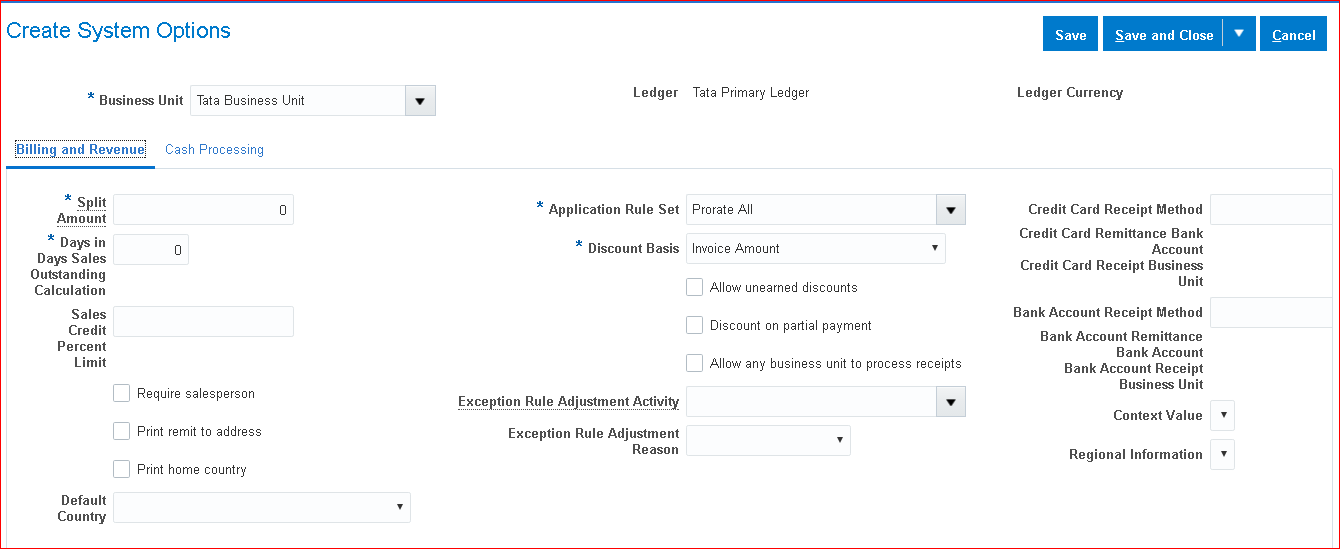
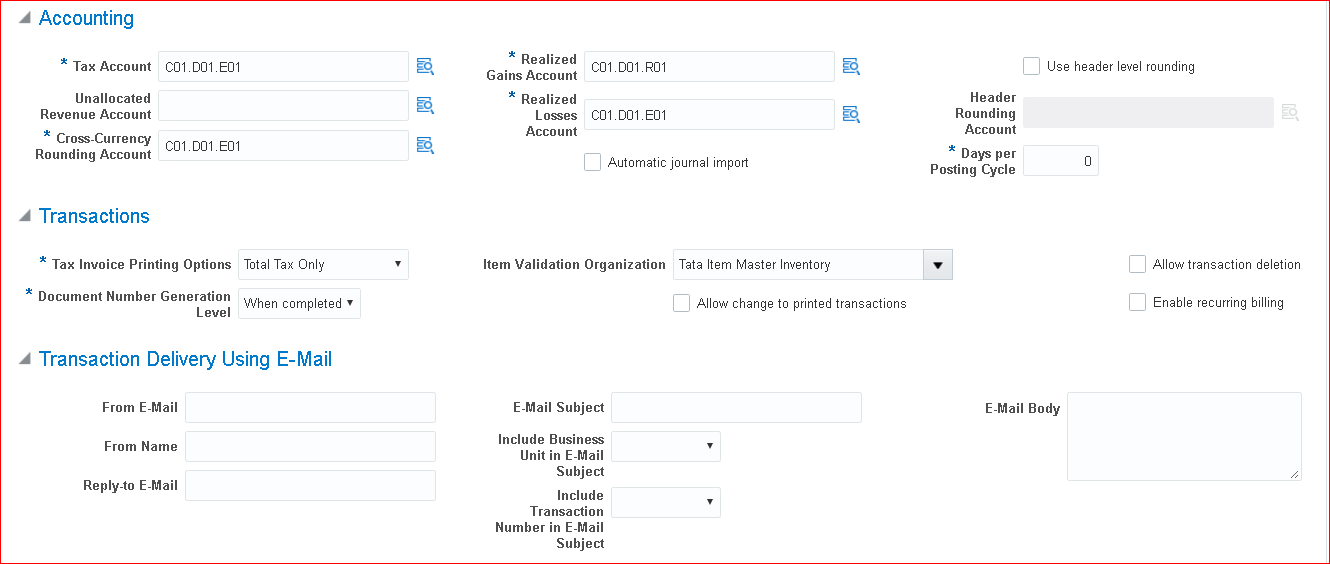
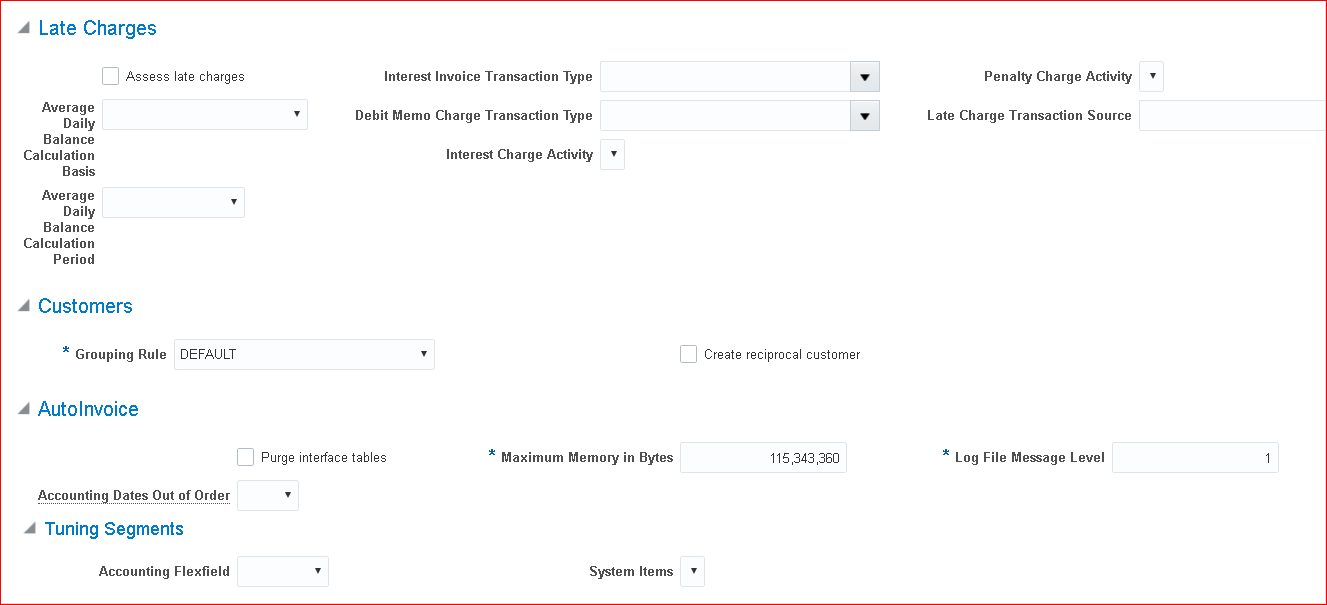 Cash Processing Tab:
Chargeback Due Date: Entered date; Invoices per Commit: 10; Receipts per Commit: 10
Save and Close
Cash Processing Tab:
Chargeback Due Date: Entered date; Invoices per Commit: 10; Receipts per Commit: 10
Save and Close
2. Define Transaction Types Implementation project >> Task 'Manage Transaction Types' >> Create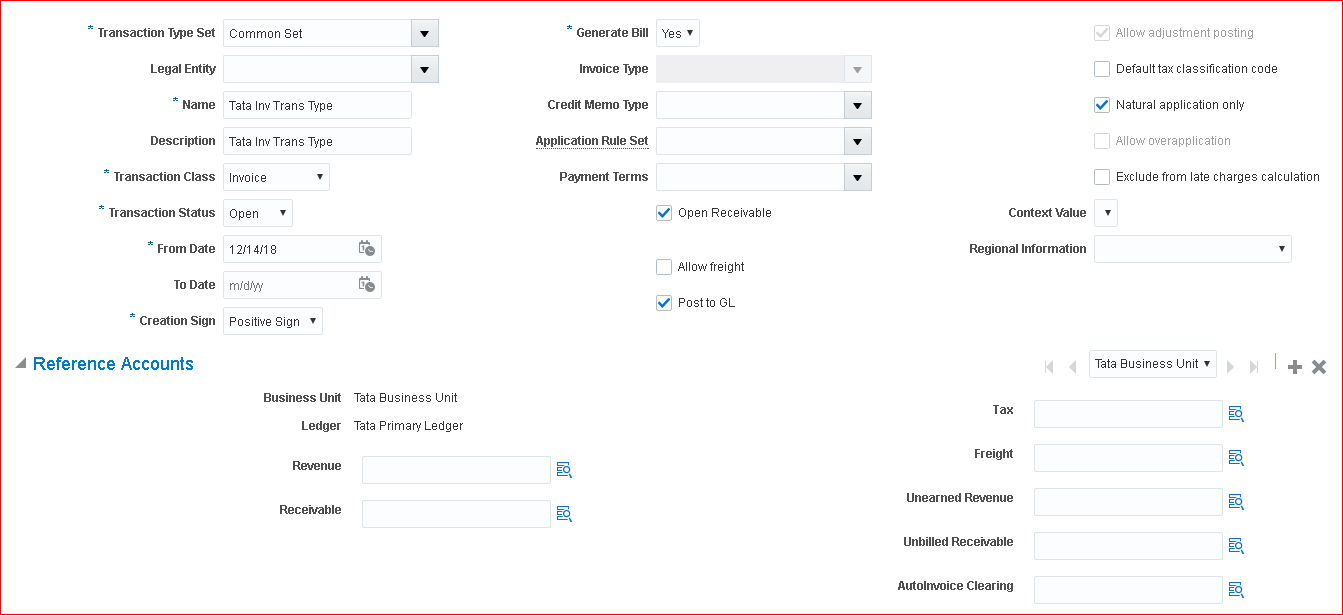 Save and Create Another
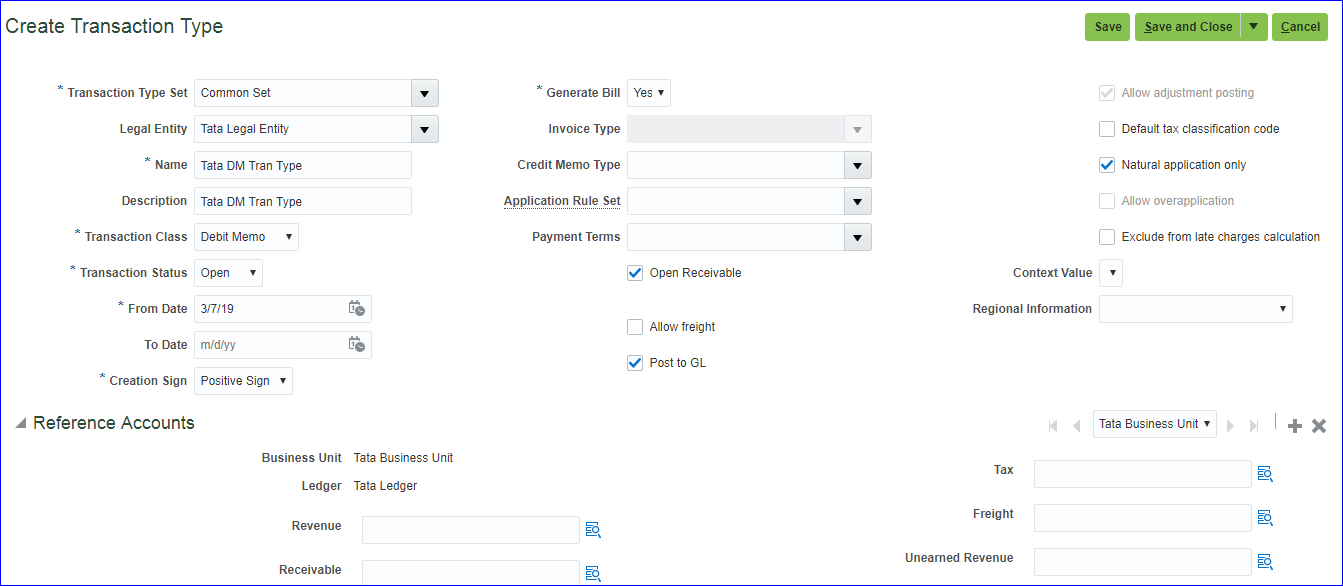
Create debit memo (Name: Tata DM Trans Type; Creation Sign: Positive Sign)
Save and Create Another
Create debit memo (Name: Tata DM Trans Type; Creation Sign: Positive Sign)
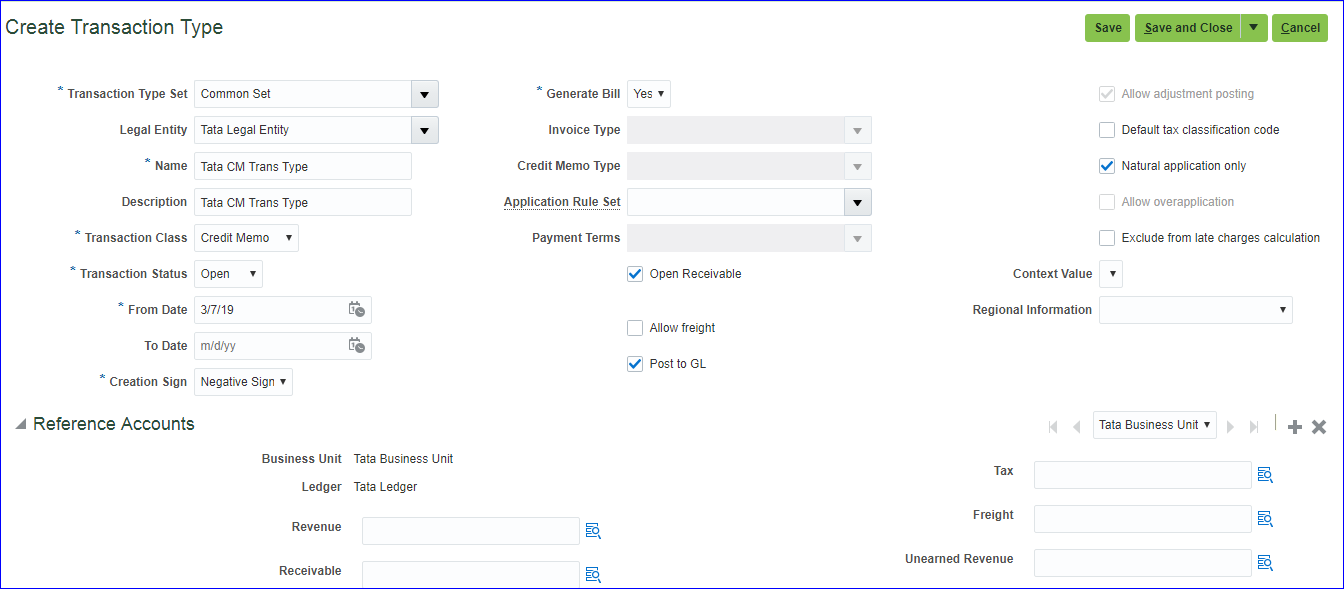
 Credit memo(Name: Tata CM Trans Type; Creation Sign: Negative Sign)
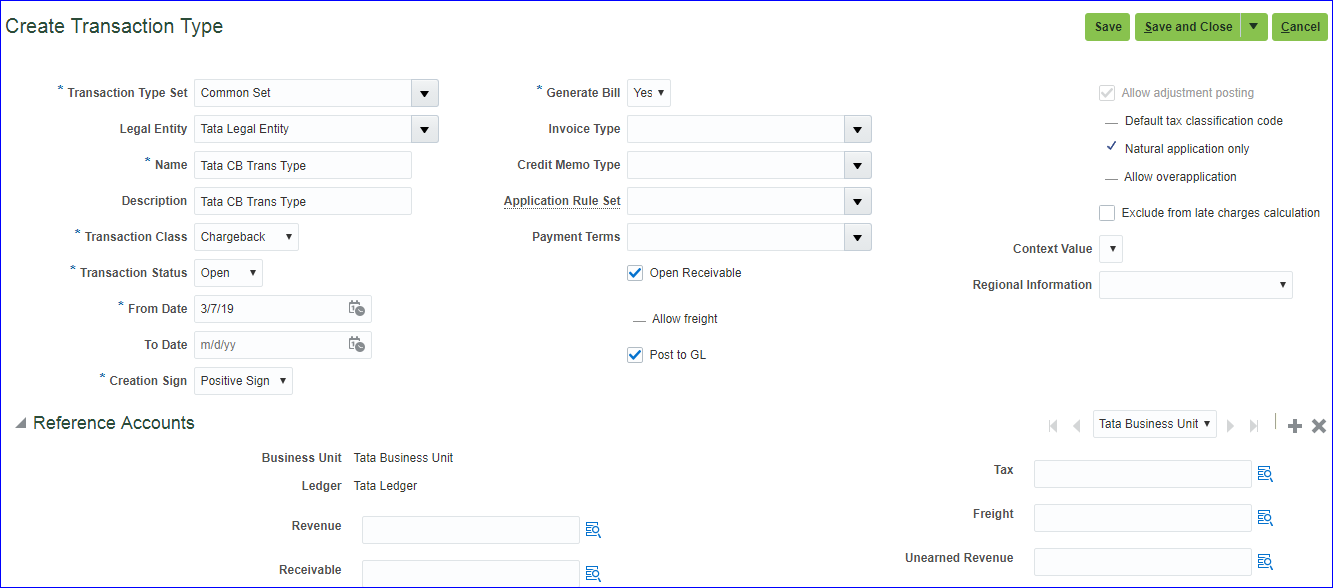
 Charge back (Name: Tata CB Trans Type; Creation Sign: Positive Sign)
 Save and Close
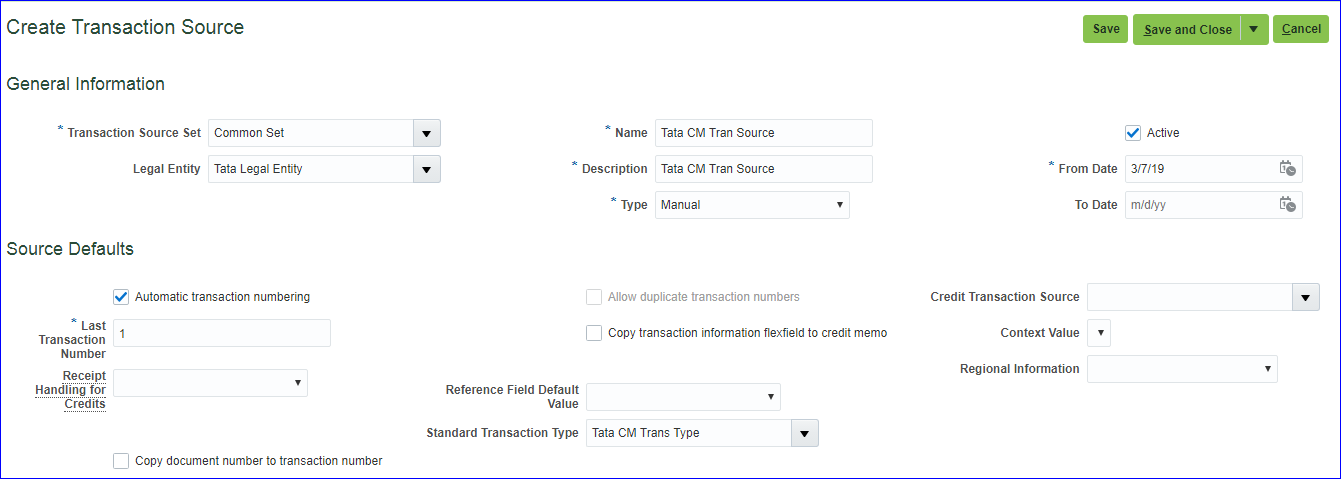
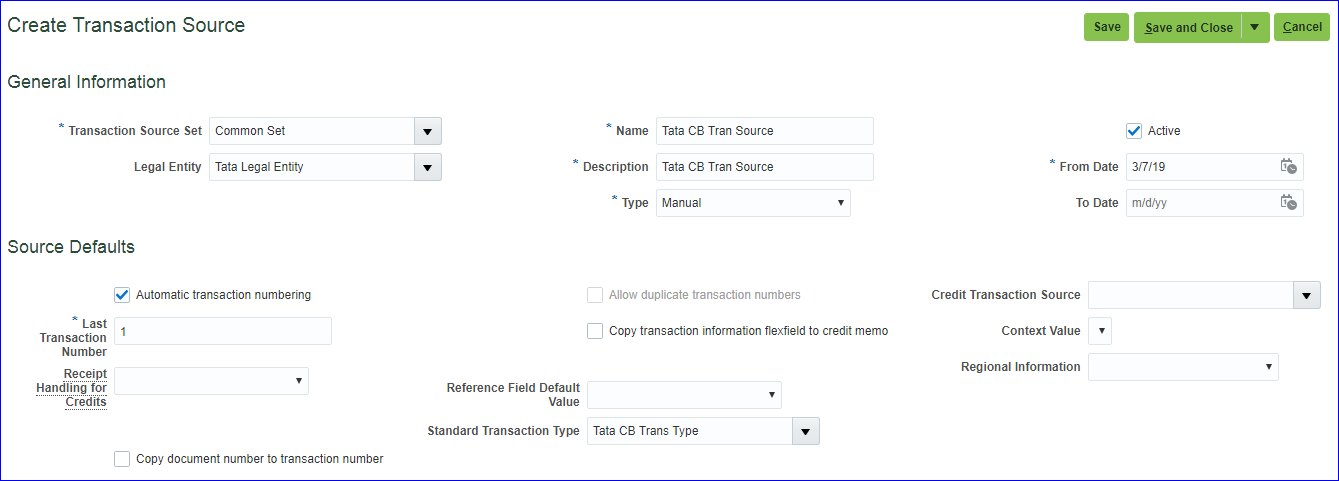
3. Define Transaction Sources Implementation project >> Task 'Manage Transaction Sources' >> Create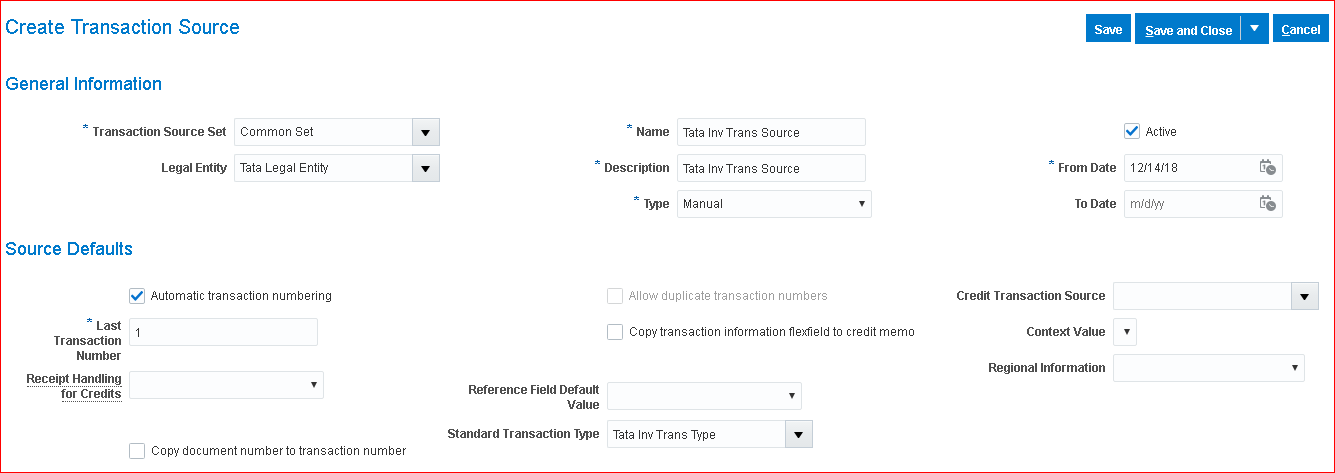 Save and Create Another
Tata DM Tran Source
Save and Create Another
Tata DM Tran Source
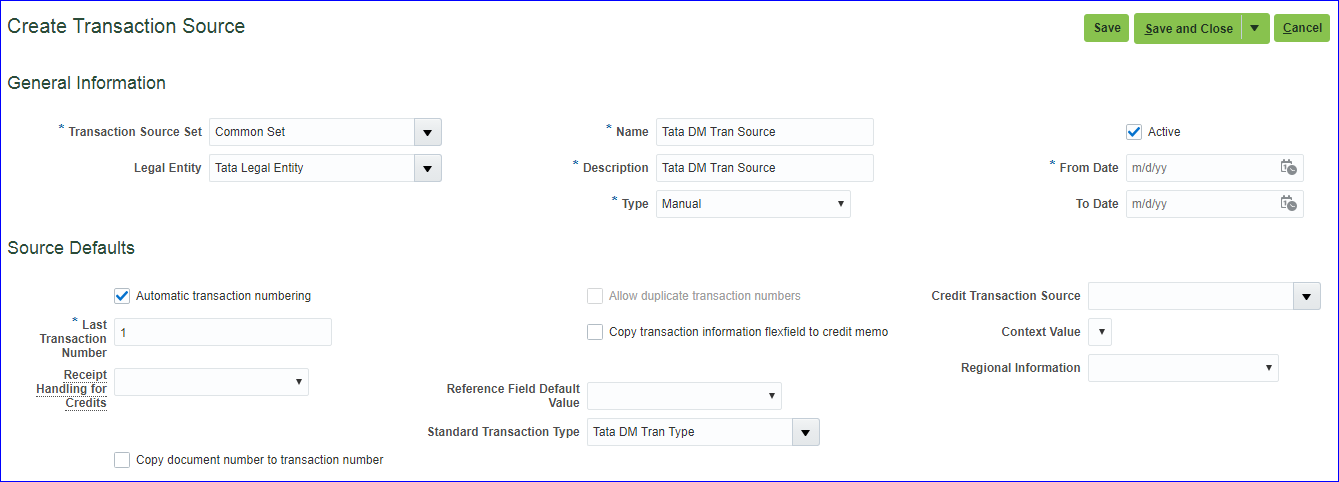 Tata CM Tran Source
 Tata CB Tran Source
 Save and Close
4. Autoaccounting Configuration Implementation project >> Task 'Manage AutoAccounting Rules' >> Create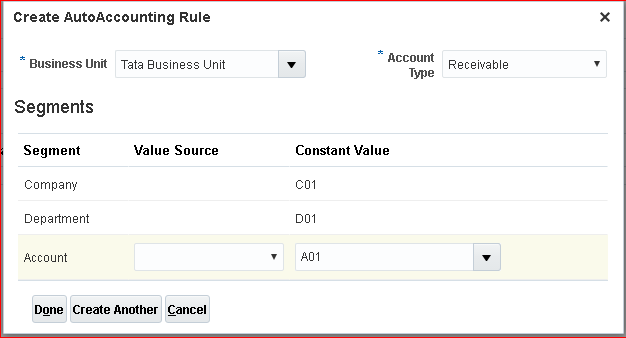 Create Another
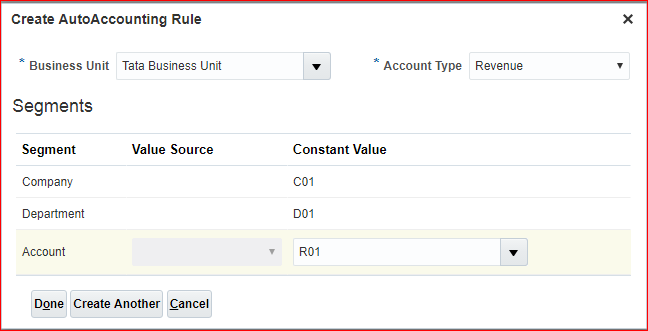 Done >> Save and Close
5. Create Payment Terms In implementation project search for task 'Manage Receivables Payment Terms' >> Create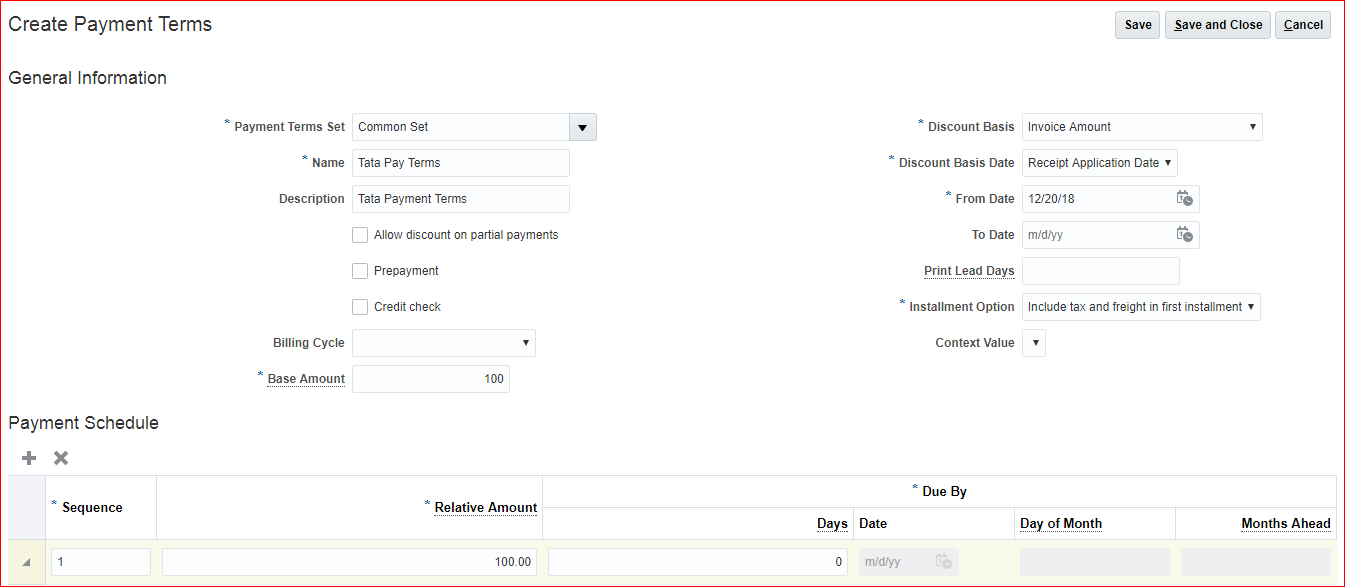 Save and Close
6. Create Statement Cycles In implementation project search for task 'Manage Statement Cycles' >> Create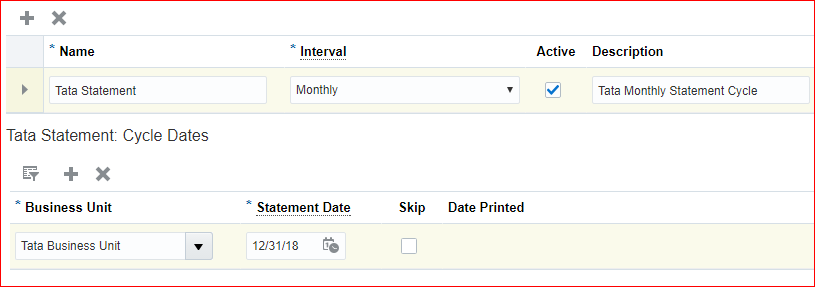 Save and Close
7. Collector creation In implementation project search for task 'Manage Collectors' >> Create Save and Close
8. Create Customer profile class In implementation project search for task 'Manage Receivables Customer Profile Classes' >> Create >> Profile Class: Tata Profile Class; Collector: Srikanth Collector; Payment Terms: Tata Pay Terms; Statement Cycle: Tata Statement >> Save and Close
9. Create Reference data set for customer site In implementation project search for task 'Manage Reference Data Sets' (Path - Financial) >> Create >> Set code: TATA_RDS_CUST_SITE; Set Name: Tata Reference Data Set Customer Site >> Save and Close
10. Assign RDS (customer site) to BU In implementation project search for task 'Manage Business Unit Set Assignment' (Path - Financials) >> For Customer Account Site assign 'TATA_RDS_CUST_SITE' >> Save and Close
11. Create Customer, Customer site & address In implementation project search for task 'Create Customer'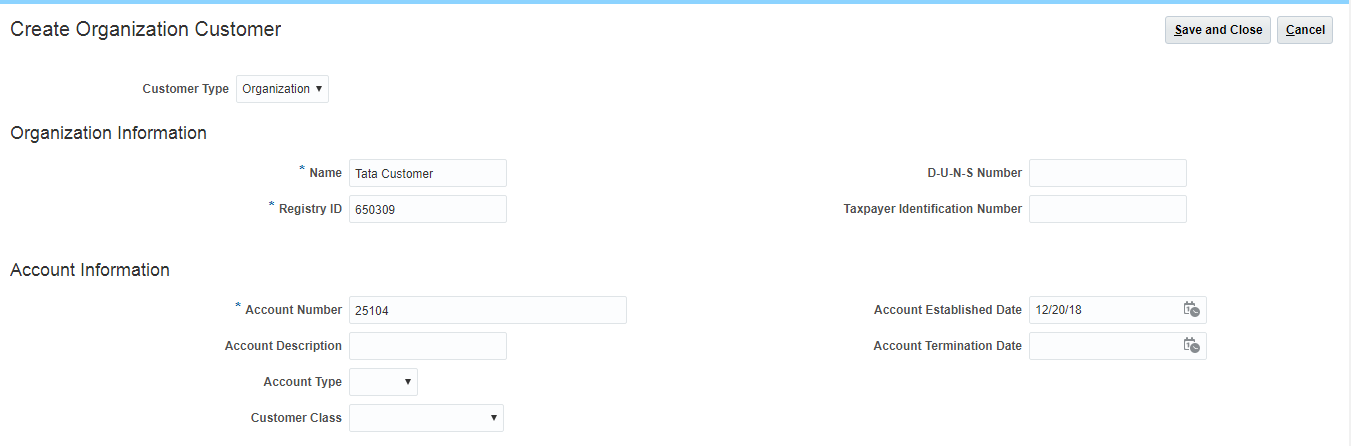
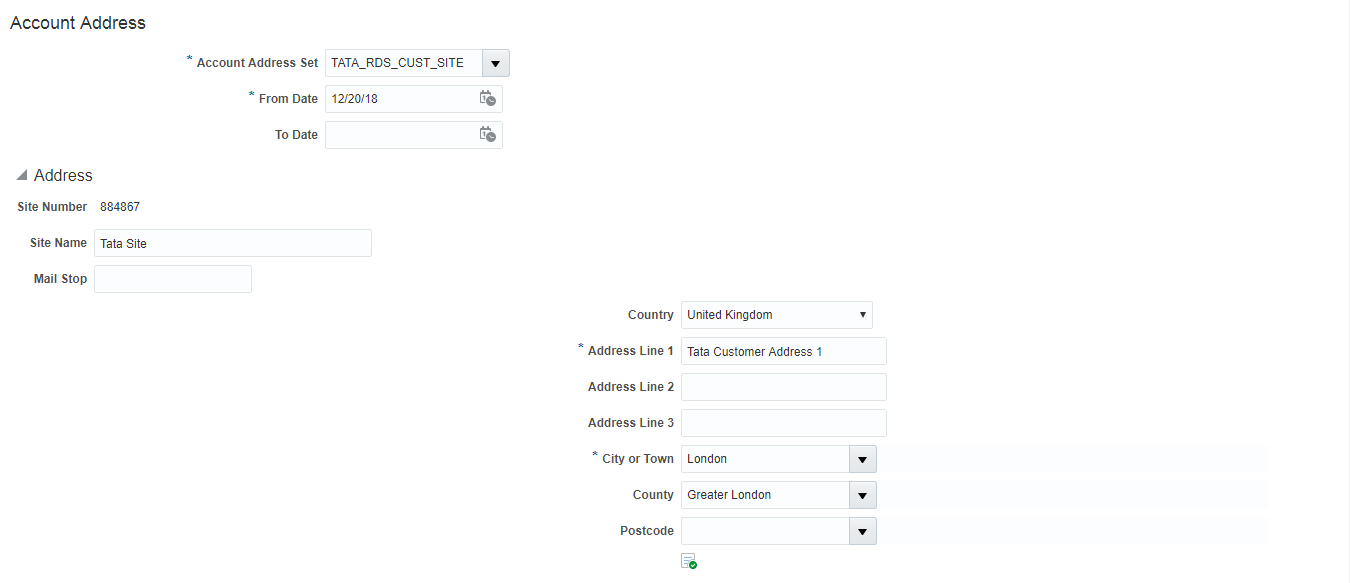
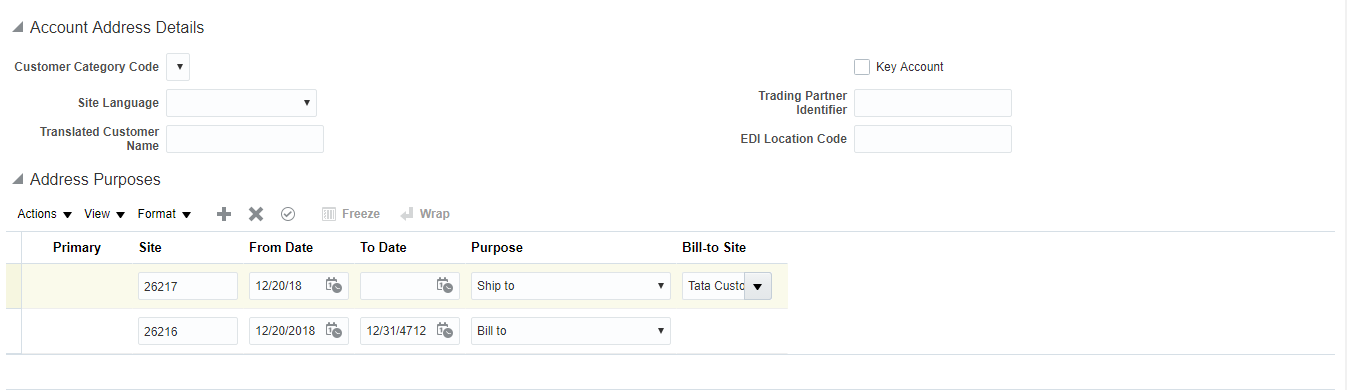 Save and Close.
Without clicking on done, search for your customer. Click on Customer Account Number >> Profile History tab >> Actions >> Correct record >> Change profile class to Tata Profile Class >> Save and Close.
Click on Customer site number >> Profile history tab >> Create Site Profile >> Save and Close >> Save and Close
Save and Close.
Without clicking on done, search for your customer. Click on Customer Account Number >> Profile History tab >> Actions >> Correct record >> Change profile class to Tata Profile Class >> Save and Close.
Click on Customer site number >> Profile history tab >> Create Site Profile >> Save and Close >> Save and Close
12. Create remit to address In implementation project search for task 'Manage Remit to Addresses' >> Create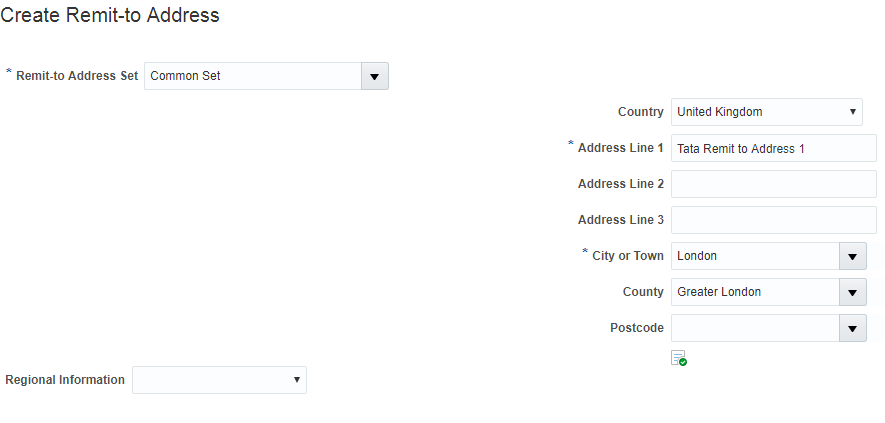 Save and Close.
Without clicking on done, search your country & select your line. Click in create at Receipt from Criteria >> Enter Country (United Kingdom) >> Save and Close >> Done
Save and Close.
Without clicking on done, search your country & select your line. Click in create at Receipt from Criteria >> Enter Country (United Kingdom) >> Save and Close >> Done
13. Memo lines creation In implementation project search for task 'Manage Standard Memo Lines' >> Create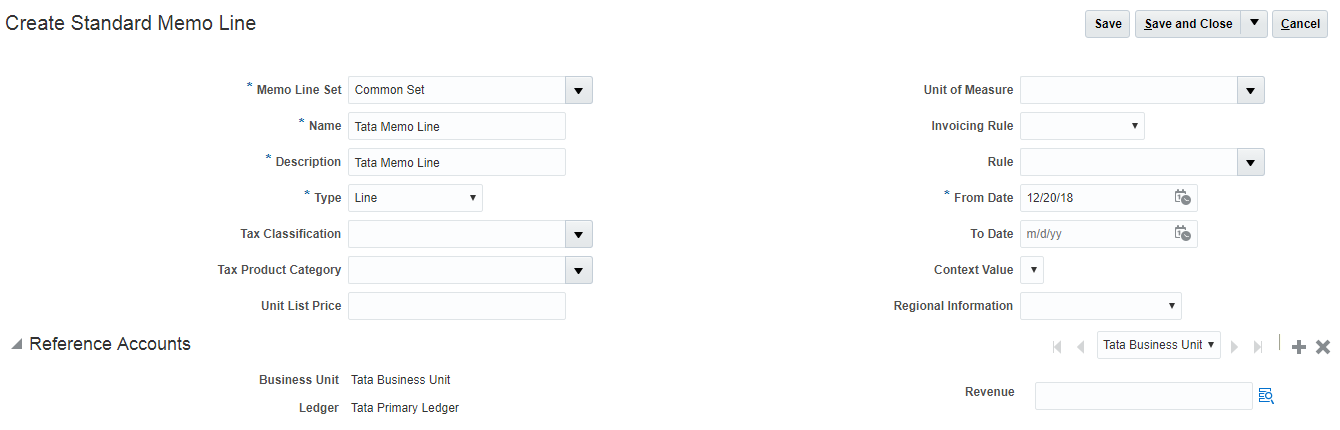 Save and Close
14. Create receivable activities In implementation project search for task 'Manage Receivables Activities' >> Create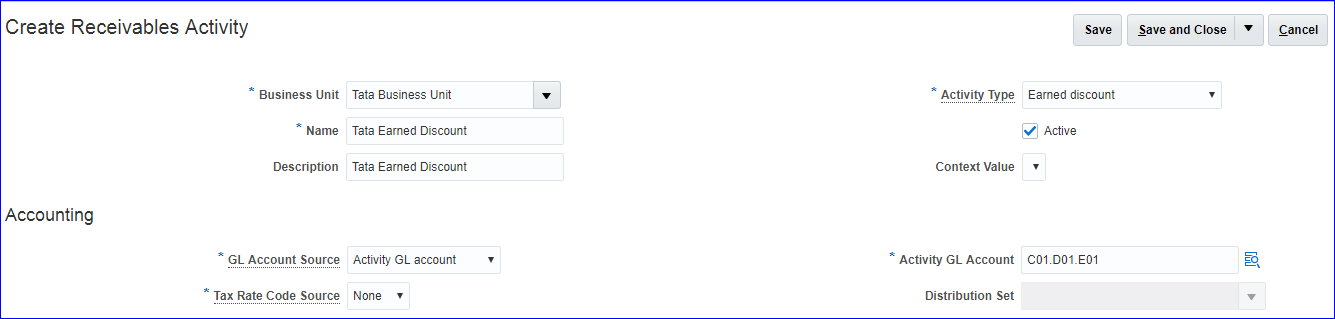 Save and Create Another
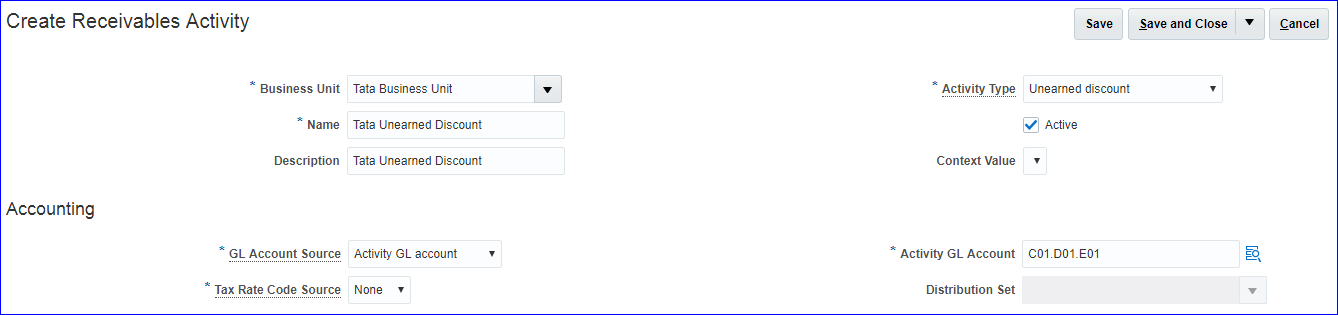 Save and Close
15. Create receipt classes & methods In implementation project search for task 'Manage Receipt Classes and Methods' >> Create Name: Tata Receipt Class; Creation Method: Manual; Remittance Method: Standard; Clearance Method: By Matching Receipt Methods >> Add row >> Name: Tata Check; Printed Name: Tata Check Remittance Bank Accounts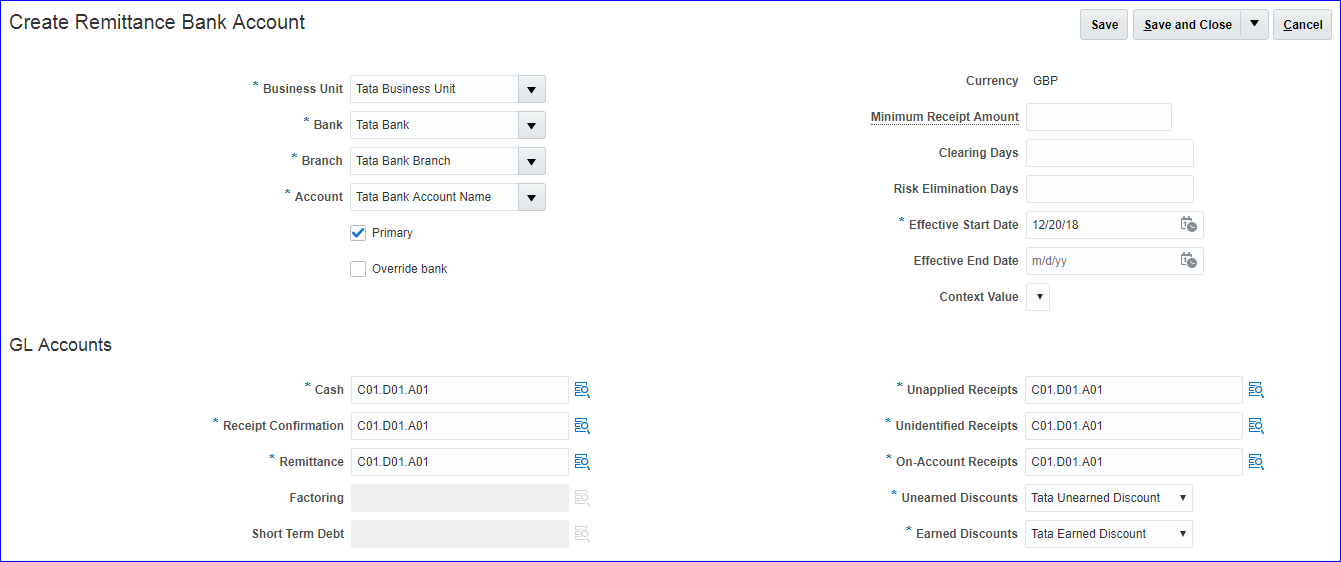 Save and Close >> Save and Close
16. Create receipt source In implementation project search for task 'Manage Receipt Sources' >> Create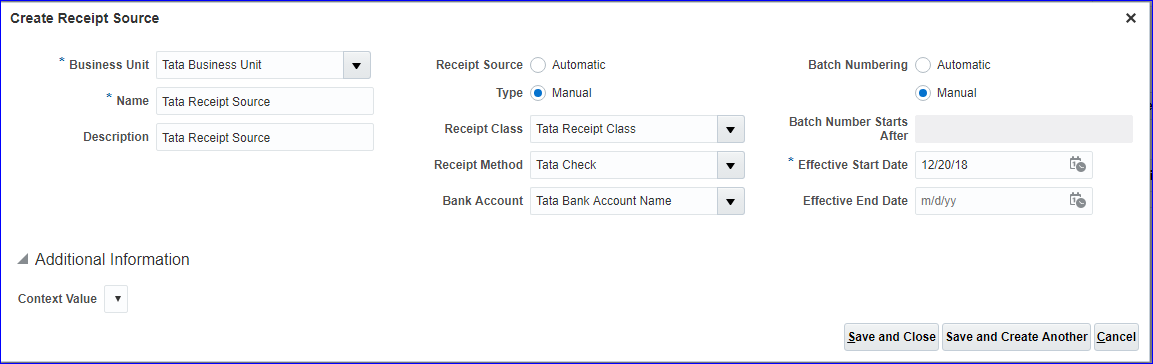 Save and Close
17. Assign AR roles to User Security Console >> User 1. Accounts Receivable Manager 2. Accounts Receivable Specialist 3. Billing Manager 4. Billing Specialist 5. Revenue Analyst
18. Provide data access for User FSM page search for task 'Manage Data Access for Users' and assign above roles with Security Context as BU.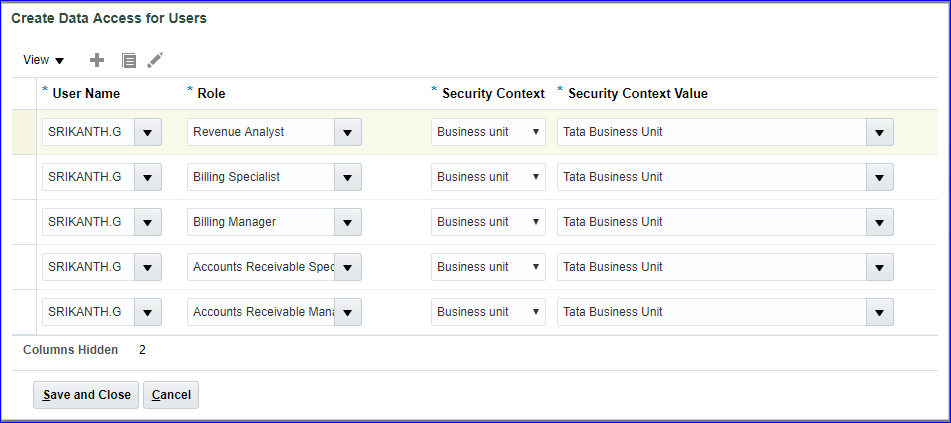 Save and Close
19. Run LDAP job In ESS job page run the request
20. Open receivables period Navigator >> Receivables >> Accounts Receivable >> Task list >> Manage Accounting Period >> Click on Ledger name >> Enter first period and target period
21. Create Transaction Navigator >> Receivables >> Billing >> Tasks >> Create Transaction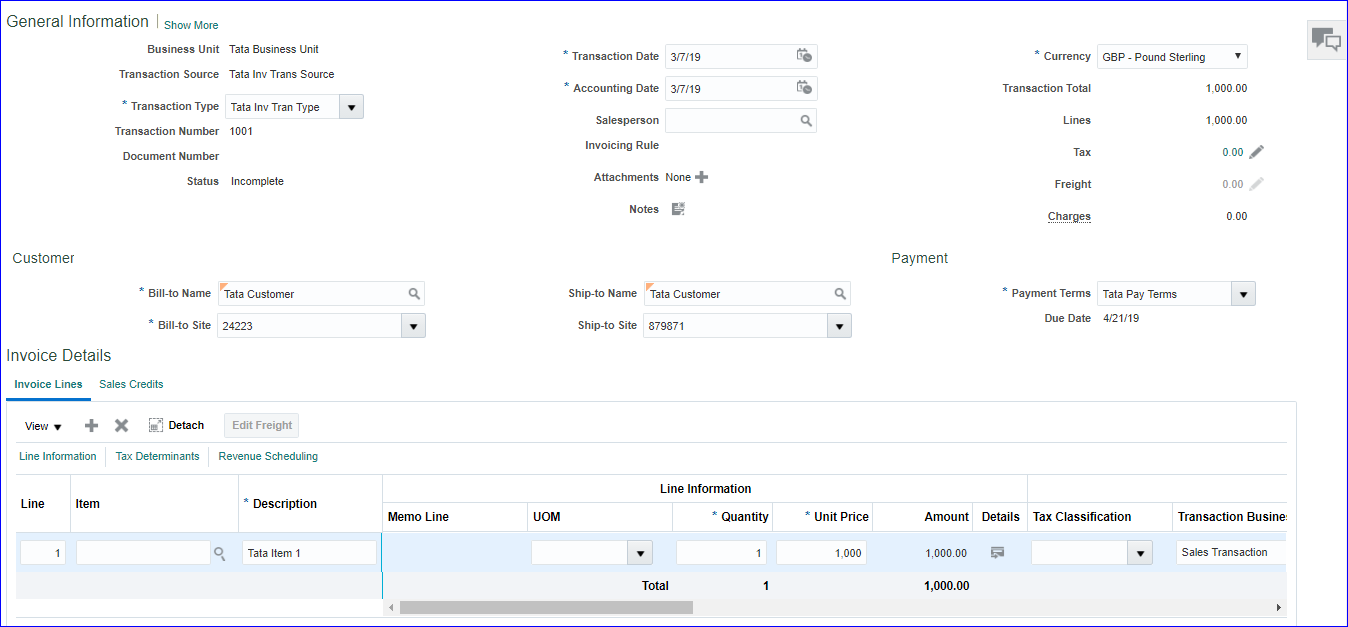 Save >> Complete and Review >> Transaction Number is 1001 >> Cancel
22. Create Receipt Receivables >> Accounts Receivable >> Tasks >> Create Receipts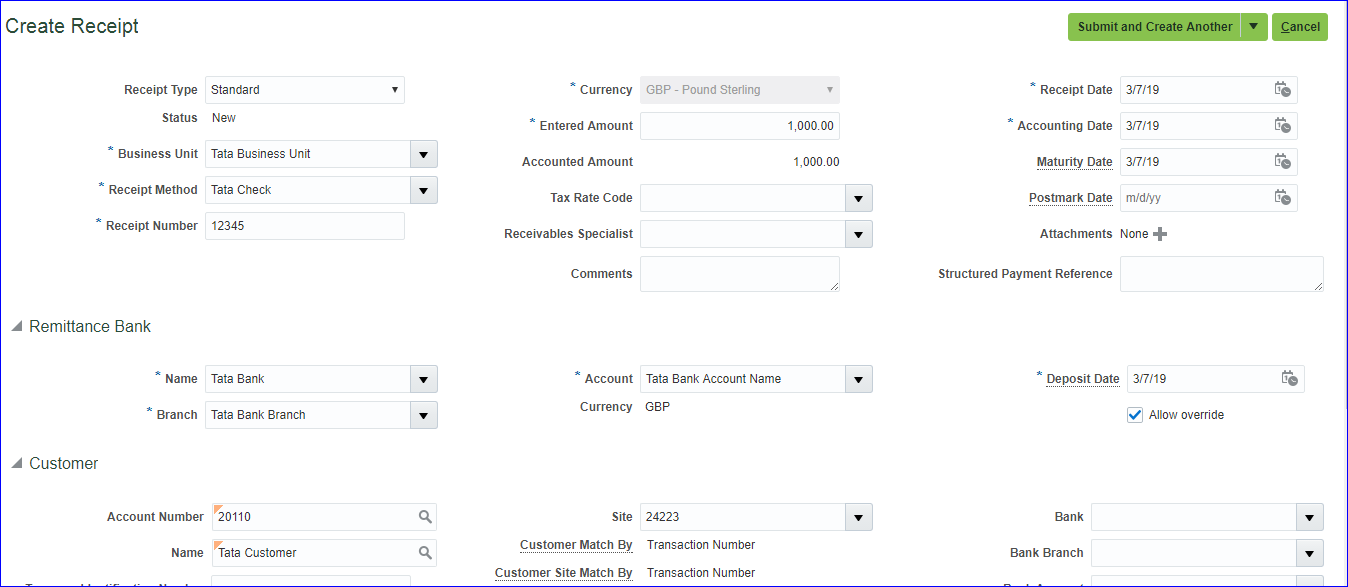 Submit and Apply Manually >> Add Open Receivables >> Here Receipt Reference Number = Transaction Number. Enter 1001 and click on search >> Select the line and click on Add >> Done >> Save and Close
Billing >> Tasks >> Manage Transactions >> Search for your transaction and open the transaction >> Actions >> Post to Ledger >> Save and Close
Accounts Receivable >> Tasks >> Manage Receipts >> Search for your receipt and open the receipt >> Actions >> Post to Ledger >> Save and Close
Submit and Apply Manually >> Add Open Receivables >> Here Receipt Reference Number = Transaction Number. Enter 1001 and click on search >> Select the line and click on Add >> Done >> Save and Close
Billing >> Tasks >> Manage Transactions >> Search for your transaction and open the transaction >> Actions >> Post to Ledger >> Save and Close
Accounts Receivable >> Tasks >> Manage Receipts >> Search for your receipt and open the receipt >> Actions >> Post to Ledger >> Save and Close
23. Create Manual Credit Memo Transaction creation: Receivables >> Billing >> Tasks >> Create Transaction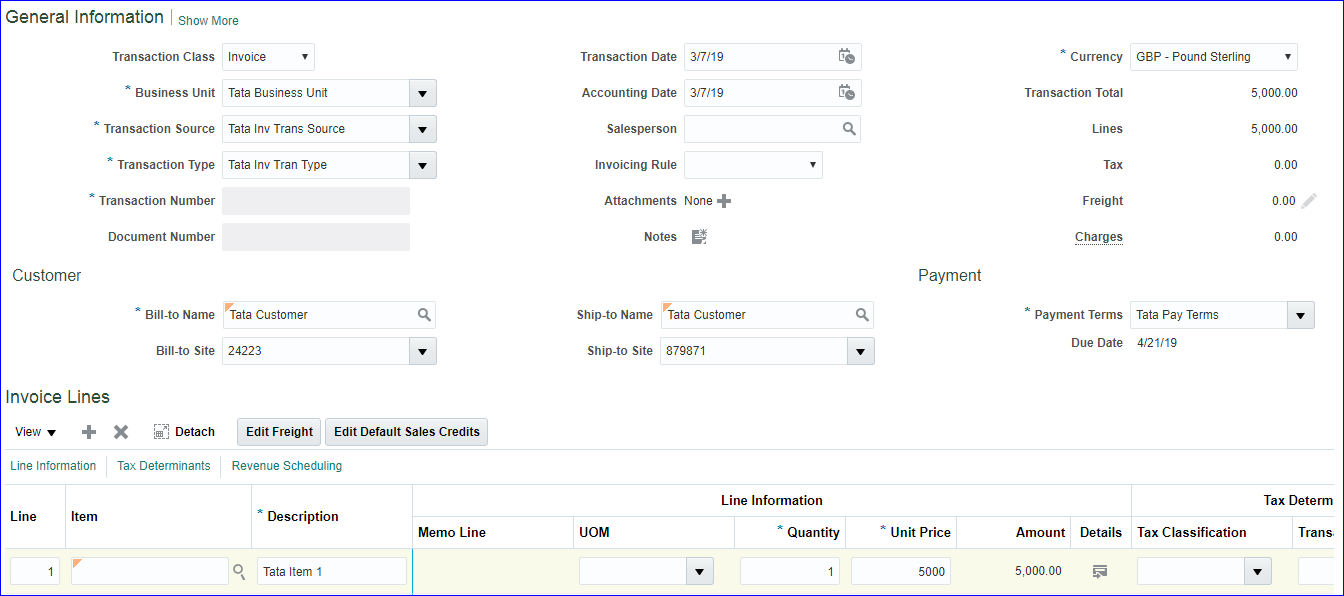 Complete and Close (Transaction 1002 has been completed.)
Credit Memo creation: Receivables >> Billing >> Tasks >> Create Transaction
Complete and Close (Transaction 1002 has been completed.)
Credit Memo creation: Receivables >> Billing >> Tasks >> Create Transaction
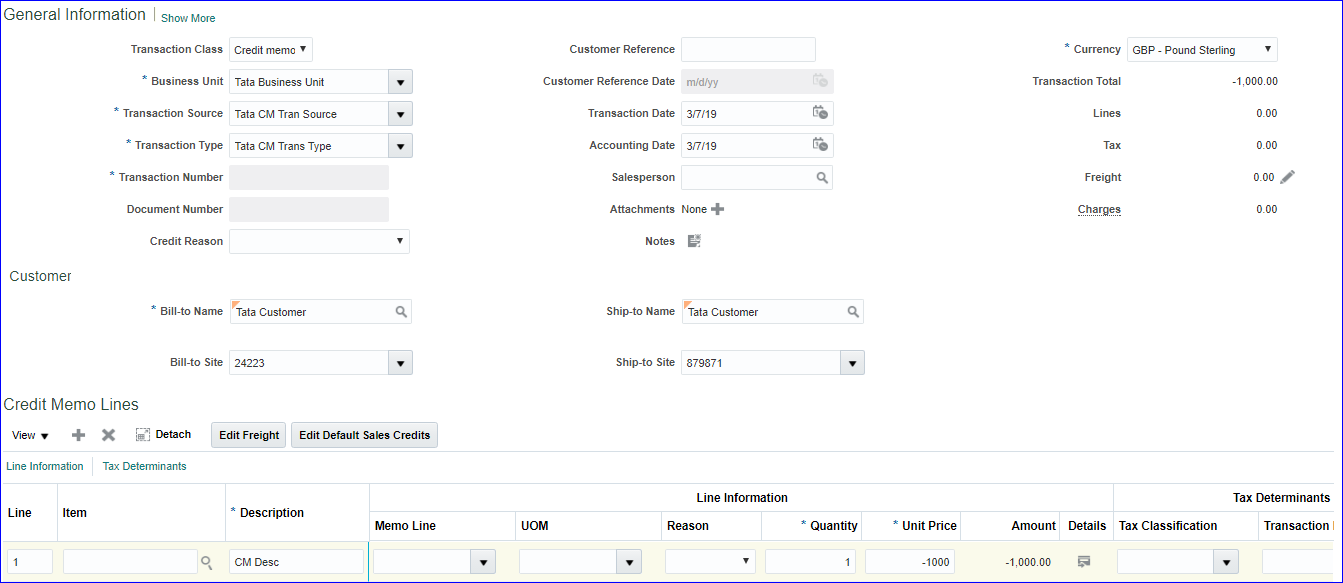 Complete and Close(Transaction 1 has been completed.)
Receivable >> Accounts Receivable >> Tasks >> Manage Credit Memo Application >> Search with CM transaction number (1) >> Click on Transaction number (hyperlink) >> Add Open Receivables >> Search your transaction number (1002) >> Select the line >> Add >> Done >> Save and Close >> Done
Complete and Close(Transaction 1 has been completed.)
Receivable >> Accounts Receivable >> Tasks >> Manage Credit Memo Application >> Search with CM transaction number (1) >> Click on Transaction number (hyperlink) >> Add Open Receivables >> Search your transaction number (1002) >> Select the line >> Add >> Done >> Save and Close >> Done
24. Create Automatic Credit Memo Receivable >> Billing >> Tasks >> Credit Transaction >> Search Original Transaction number (1002 - Here we are using above transaction number itself. Our previous manual CM of -1000 has been debited and current balance is 4000. Now we will apply CM of -500)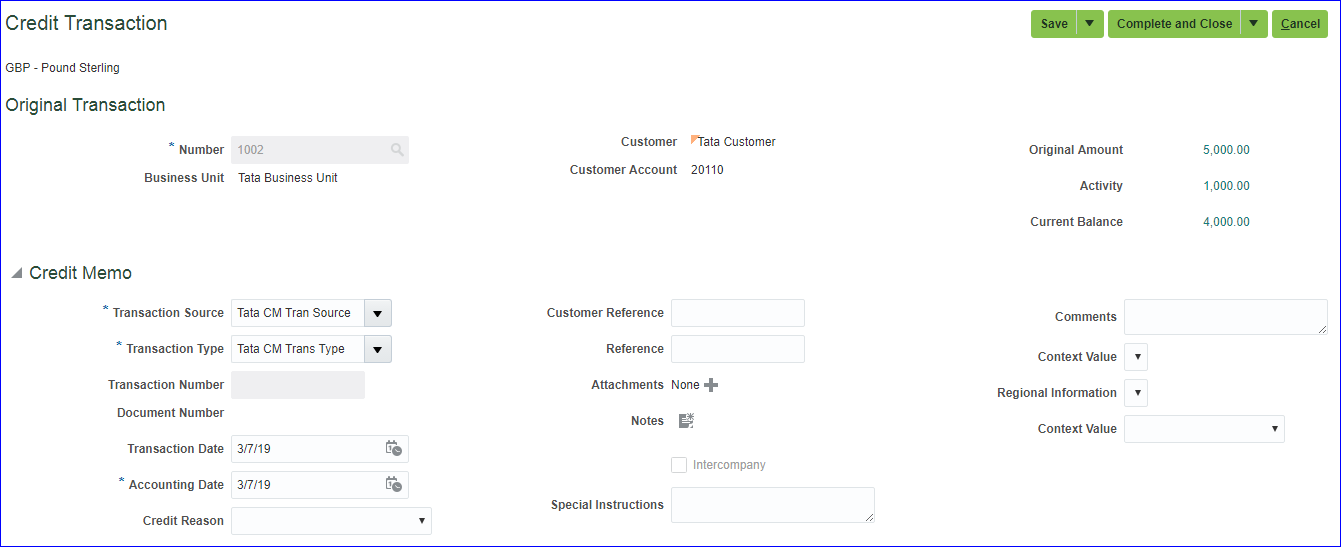
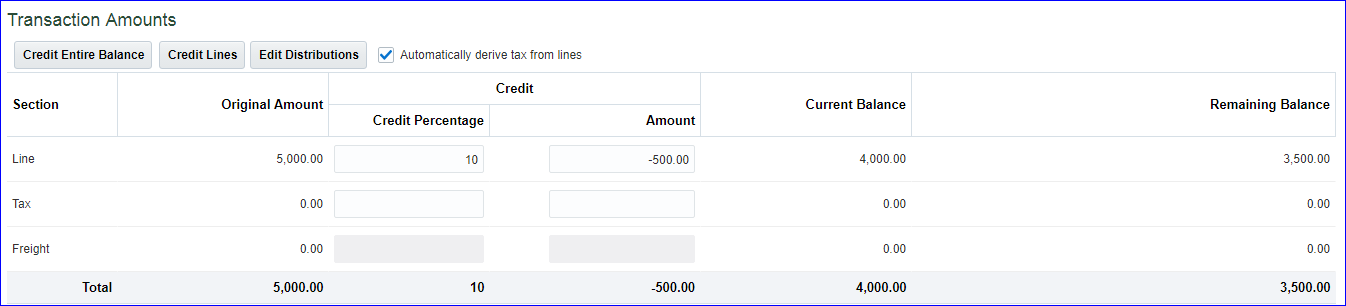 Complete and Review. New credit memo created with transaction number as 2 >> Save and Close.
25. Creation of Debit Memo We will make use of invoice transaction 1002 with current balance of 3500. Billing >> Tasks >> Create Transaction >> Show More >> Under Customer tab enter customer details; Payment tab - select your payment terms; Miscellaneous tab enter invoice transaction number at Cross Reference.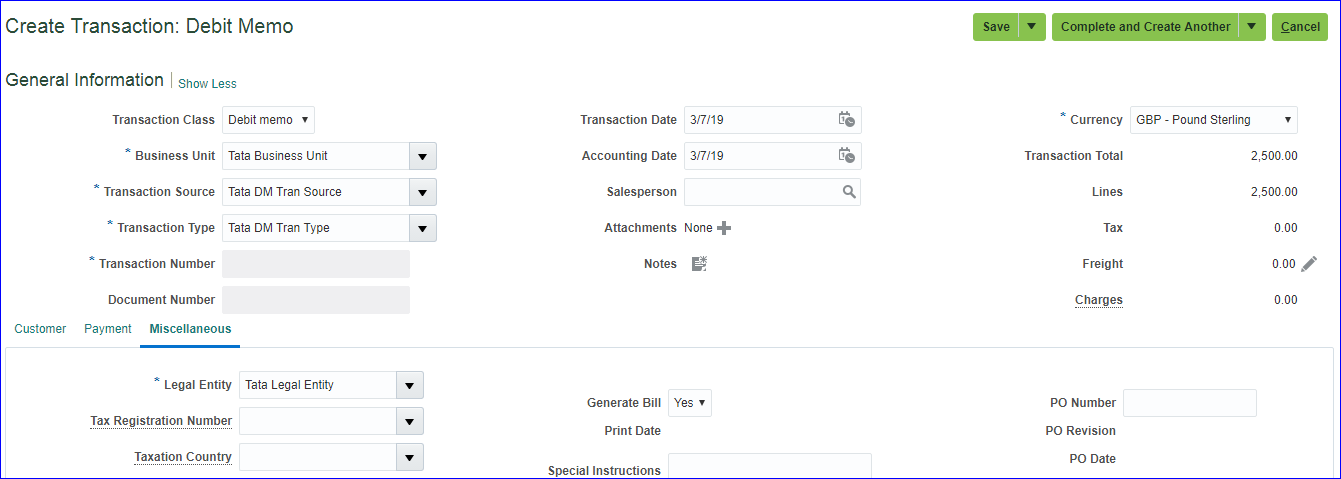
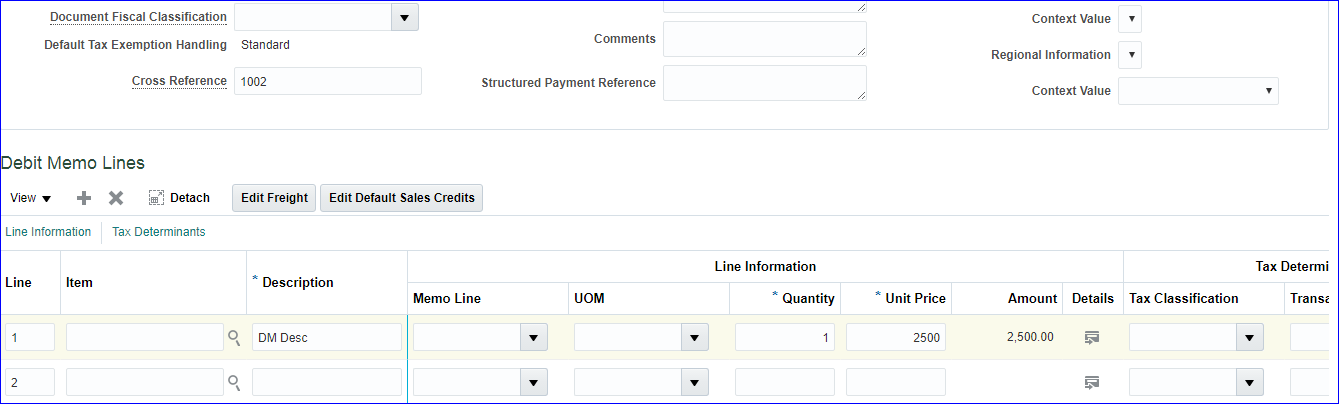 Complete and Close (Transaction 1 has been completed.)
26. Creation of Transaction using Memo lines Billing >> Tasks >> Create Transaction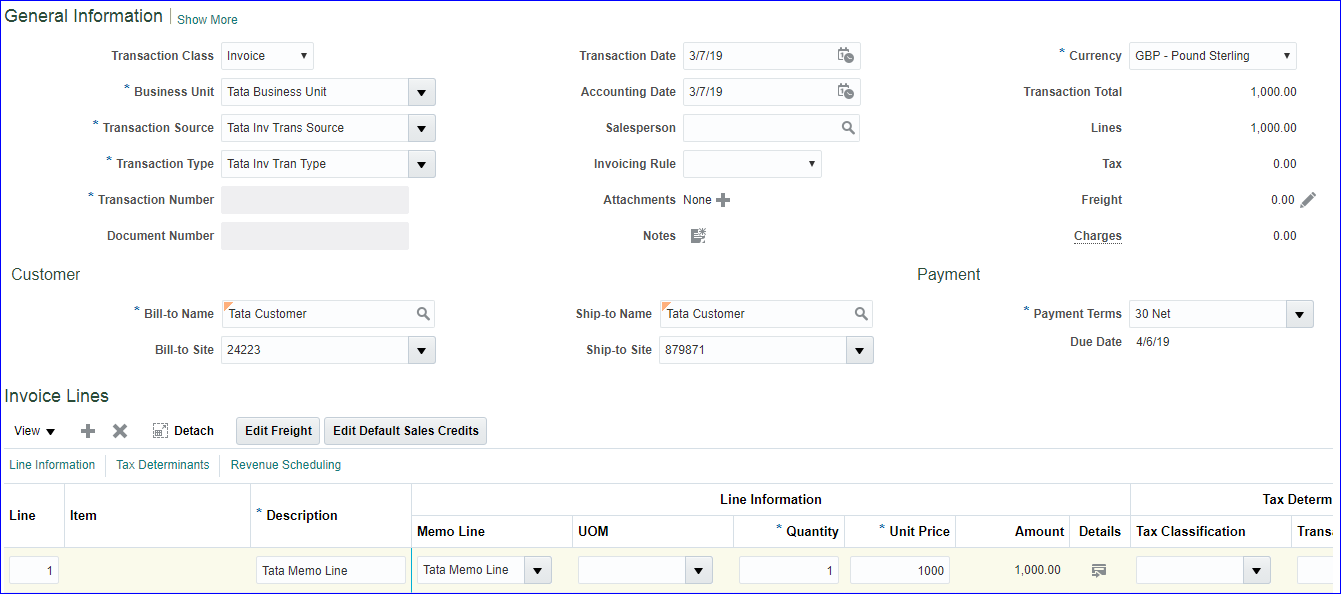 Complete and Close (Transaction 1003 has been completed.)
27. Creation of ChargeBack transaction First we have to create Receivables activity for Chargeback. a) Create transaction of 10000 b) Customer paid 8000 = Receipt created and applied for 8000 c) To postpone the due date for payment of 2000 by customer, we need to perform Chargeback activity d) System automatically creates Chargeback transaction of 2000 FSM >> Tasks >> Search >> 'Manage Receivables Activities' >> Search you BU >> System automatically creates 'Chargeback Adjustment' >> Click on Name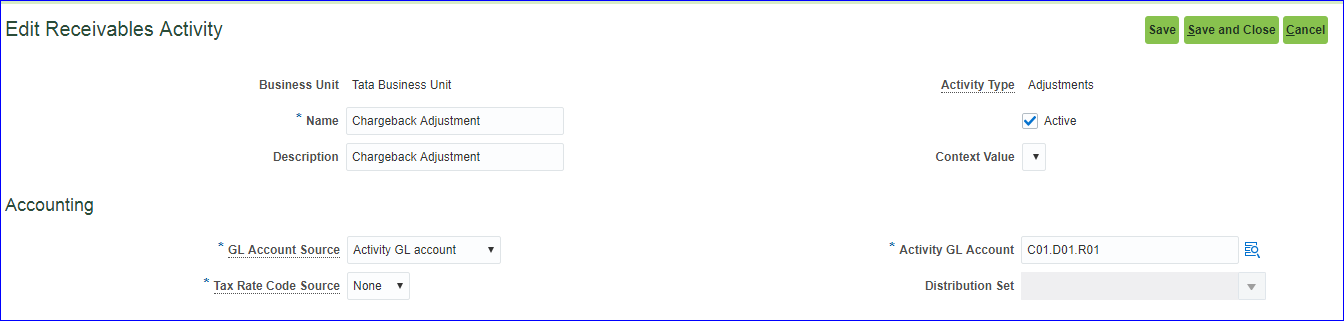 Save and Close
a) Receivables >> Billing >> Tasks >> Create Transaction >> Transaction 1004 has been completed.
b) Receivables >> Account Receivables >> Tasks >> Create Receipt >> Receipt Number: 12346 >> Submit and Apply Manually >> Add Open Receivables >> Search Receipt Reference Number as 1004 >> Select the line >> Add >> Done >> Save
c) Under Receipt Details >> Application tab >> Select the line >> Actions >> Create Chargeback
Save and Close
a) Receivables >> Billing >> Tasks >> Create Transaction >> Transaction 1004 has been completed.
b) Receivables >> Account Receivables >> Tasks >> Create Receipt >> Receipt Number: 12346 >> Submit and Apply Manually >> Add Open Receivables >> Search Receipt Reference Number as 1004 >> Select the line >> Add >> Done >> Save
c) Under Receipt Details >> Application tab >> Select the line >> Actions >> Create Chargeback
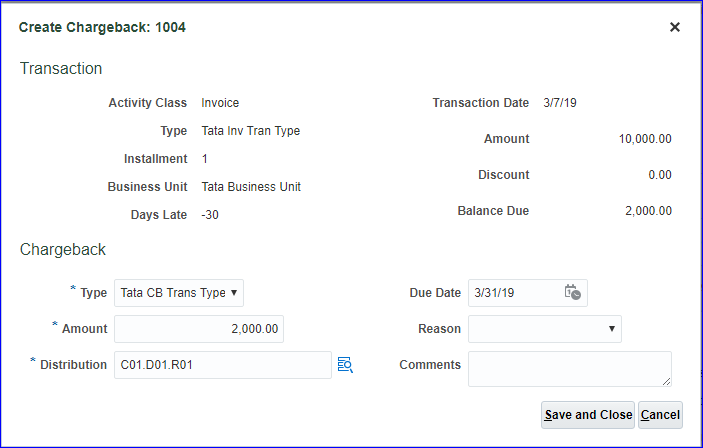 Change Due Date (I gave 31-Mar-2019) >> Save and Close >> The chargeback 100001 has been created. >> Save and Close
Billing >> Tasks >> Manage Transactions >> Search with transaction number 100001
Change Due Date (I gave 31-Mar-2019) >> Save and Close >> The chargeback 100001 has been created. >> Save and Close
Billing >> Tasks >> Manage Transactions >> Search with transaction number 100001
28. Creation of On Account receipt Receivable >> Accounts Receivable >> Tasks >> Create Receipt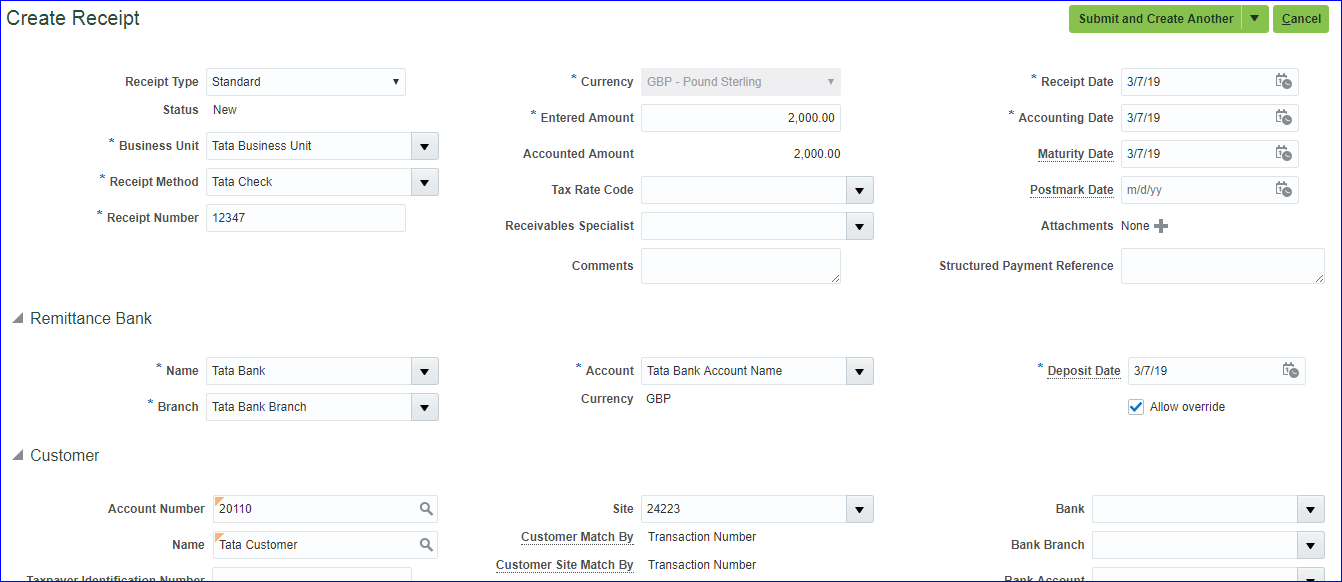 Submit and Apply Manually >> Add Open Receivables >> Search your Customer >> Select the line (even multiple lines can be selected) which has due amount < 2000 >> Add >> Done >> Save
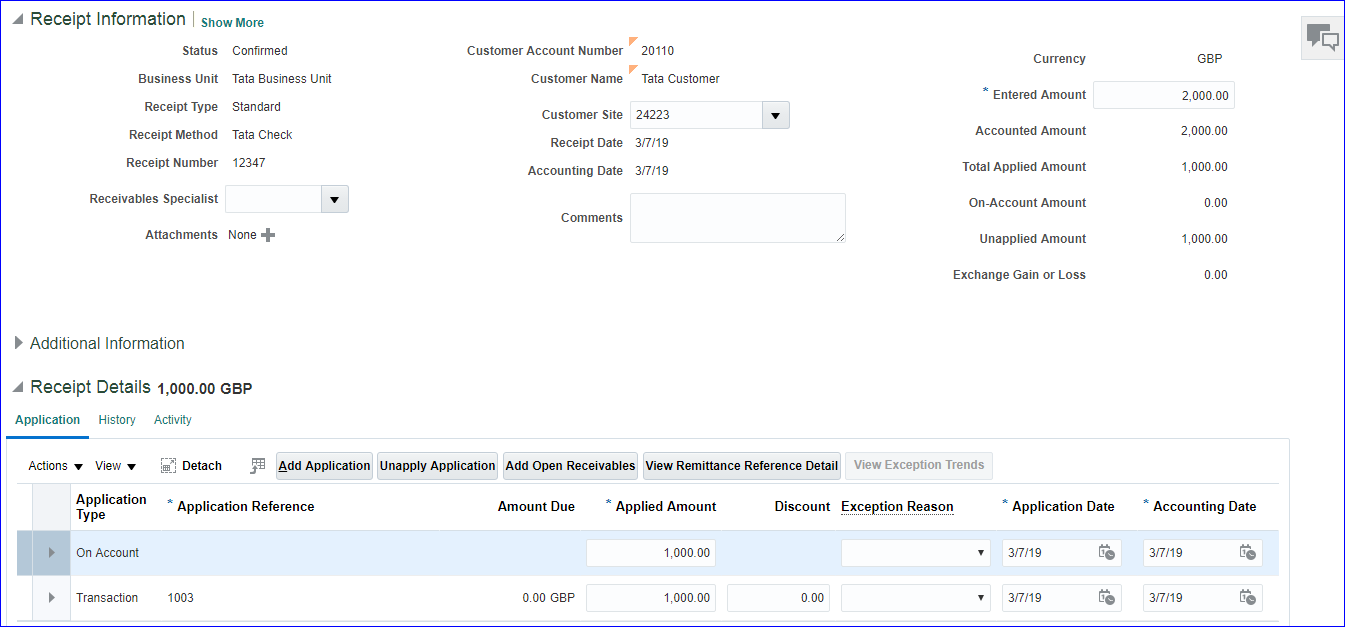
Select the line >> Actions >> More >> Create On-Account Application >> Ok
Submit and Apply Manually >> Add Open Receivables >> Search your Customer >> Select the line (even multiple lines can be selected) which has due amount < 2000 >> Add >> Done >> Save
Select the line >> Actions >> More >> Create On-Account Application >> Ok
 Save and Close
Receivable >> Accounts Receivable >> Tasks >> Manage Receipts >> Search receipt number (12347) >> Select line & Edit >> Select On Account line and click on Unapply Application >> Save and Close >> Add Open Receivables >> Search your customer and select any line which you want to apply >>Add >> Done >> Save and Close
Save and Close
Receivable >> Accounts Receivable >> Tasks >> Manage Receipts >> Search receipt number (12347) >> Select line & Edit >> Select On Account line and click on Unapply Application >> Save and Close >> Add Open Receivables >> Search your customer and select any line which you want to apply >>Add >> Done >> Save and Close
29. Creation of Miscellaneous receipt a) Create receivables activity for Misc. receipt b) Create Misc. receipt a) FSM >> Tasks >> Search >> 'Manage Receivables Activities' >> Create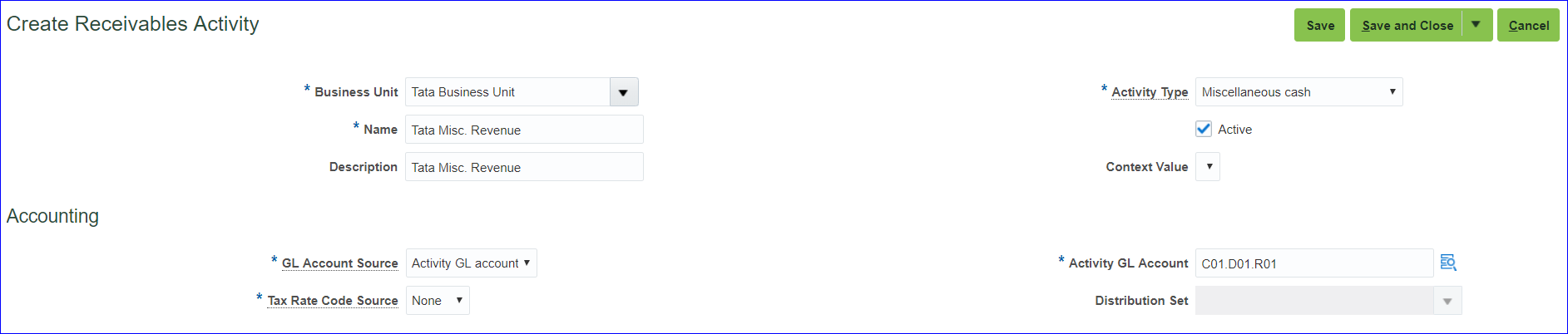 Save and Close
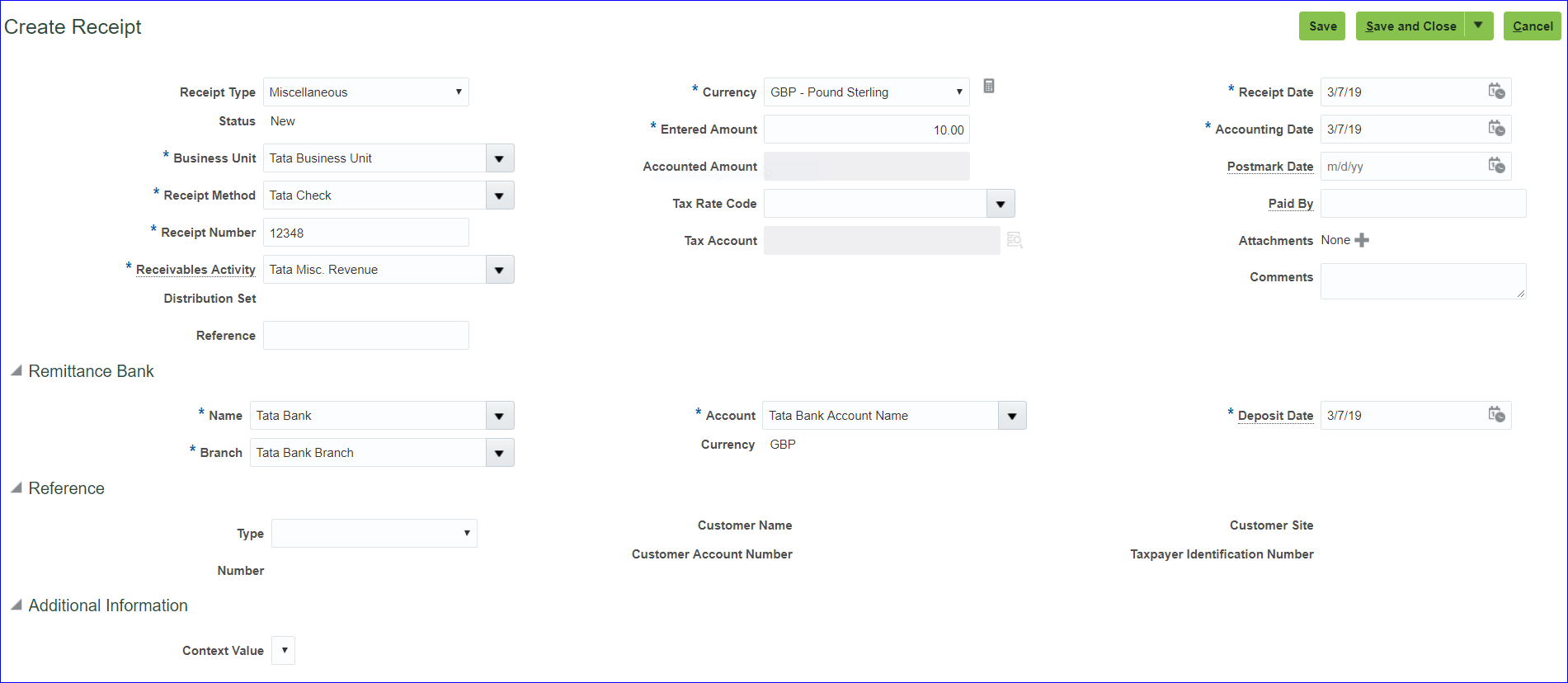
b) Receivables >> Accounts Receivable >> Tasks >> Create Receipt
Save and Close
b) Receivables >> Accounts Receivable >> Tasks >> Create Receipt
 Save and Close
Pending 34, 35, 36 & 37
Save and Close
Pending 34, 35, 36 & 37
- Receivables System Options configuration
- Define Transaction Types
- Define Transaction Sources
- Autoaccounting Configuration
- Create Payment Terms
- Create Statement Cycles
- Collector creation
- Create Customer profile class
- Create Reference data set for customer site
- Assign RDS (customer site) to BU
- Create Customer, Customer site & address
- Create remit to address
- Memo lines creation
- Create receivable activities
- Create receipt classes & methods
- Create receipt source
- Assign AR roles to User
- Provide data access for User
- Run LDAP job
- Open receivables period
- Create Transaction
- Create Receipt
- Create Manual Credit Memo
- Create Automatic Credit Memo
- Creation of Debit Memo
- Creation of Transaction using Memo lines
- Creation of ChargeBack transaction
- Creation of On Account receipt
- Creation of Miscellaneous receipt
1. Receivables System Options configuration Implementation project >> Task 'Manage Receivables System Options' >> Create >>
Cash Processing Tab:
Chargeback Due Date: Entered date; Invoices per Commit: 10; Receipts per Commit: 10
Save and Close
2. Define Transaction Types Implementation project >> Task 'Manage Transaction Types' >> Create
Save and Create Another
Create debit memo (Name: Tata DM Trans Type; Creation Sign: Positive Sign)
Credit memo(Name: Tata CM Trans Type; Creation Sign: Negative Sign)
Charge back (Name: Tata CB Trans Type; Creation Sign: Positive Sign)
Save and Close
3. Define Transaction Sources Implementation project >> Task 'Manage Transaction Sources' >> Create
Save and Create Another
Tata DM Tran Source
Tata CM Tran Source
Tata CB Tran Source
Save and Close
4. Autoaccounting Configuration Implementation project >> Task 'Manage AutoAccounting Rules' >> Create
Create Another
Done >> Save and Close
5. Create Payment Terms In implementation project search for task 'Manage Receivables Payment Terms' >> Create
Save and Close
6. Create Statement Cycles In implementation project search for task 'Manage Statement Cycles' >> Create
Save and Close
7. Collector creation In implementation project search for task 'Manage Collectors' >> Create
Save and Close
8. Create Customer profile class In implementation project search for task 'Manage Receivables Customer Profile Classes' >> Create >> Profile Class: Tata Profile Class; Collector: Srikanth Collector; Payment Terms: Tata Pay Terms; Statement Cycle: Tata Statement >> Save and Close
9. Create Reference data set for customer site In implementation project search for task 'Manage Reference Data Sets' (Path - Financial) >> Create >> Set code: TATA_RDS_CUST_SITE; Set Name: Tata Reference Data Set Customer Site >> Save and Close
10. Assign RDS (customer site) to BU In implementation project search for task 'Manage Business Unit Set Assignment' (Path - Financials) >> For Customer Account Site assign 'TATA_RDS_CUST_SITE' >> Save and Close
11. Create Customer, Customer site & address In implementation project search for task 'Create Customer'
Save and Close.
Without clicking on done, search for your customer. Click on Customer Account Number >> Profile History tab >> Actions >> Correct record >> Change profile class to Tata Profile Class >> Save and Close.
Click on Customer site number >> Profile history tab >> Create Site Profile >> Save and Close >> Save and Close
12. Create remit to address In implementation project search for task 'Manage Remit to Addresses' >> Create
Save and Close.
Without clicking on done, search your country & select your line. Click in create at Receipt from Criteria >> Enter Country (United Kingdom) >> Save and Close >> Done
13. Memo lines creation In implementation project search for task 'Manage Standard Memo Lines' >> Create
Save and Close
14. Create receivable activities In implementation project search for task 'Manage Receivables Activities' >> Create
Save and Create Another
Save and Close
15. Create receipt classes & methods In implementation project search for task 'Manage Receipt Classes and Methods' >> Create Name: Tata Receipt Class; Creation Method: Manual; Remittance Method: Standard; Clearance Method: By Matching Receipt Methods >> Add row >> Name: Tata Check; Printed Name: Tata Check Remittance Bank Accounts
Save and Close >> Save and Close
16. Create receipt source In implementation project search for task 'Manage Receipt Sources' >> Create
Save and Close
17. Assign AR roles to User Security Console >> User 1. Accounts Receivable Manager 2. Accounts Receivable Specialist 3. Billing Manager 4. Billing Specialist 5. Revenue Analyst
18. Provide data access for User FSM page search for task 'Manage Data Access for Users' and assign above roles with Security Context as BU.
Save and Close
19. Run LDAP job In ESS job page run the request
20. Open receivables period Navigator >> Receivables >> Accounts Receivable >> Task list >> Manage Accounting Period >> Click on Ledger name >> Enter first period and target period
21. Create Transaction Navigator >> Receivables >> Billing >> Tasks >> Create Transaction
Save >> Complete and Review >> Transaction Number is 1001 >> Cancel
22. Create Receipt Receivables >> Accounts Receivable >> Tasks >> Create Receipts
Submit and Apply Manually >> Add Open Receivables >> Here Receipt Reference Number = Transaction Number. Enter 1001 and click on search >> Select the line and click on Add >> Done >> Save and Close
Billing >> Tasks >> Manage Transactions >> Search for your transaction and open the transaction >> Actions >> Post to Ledger >> Save and Close
Accounts Receivable >> Tasks >> Manage Receipts >> Search for your receipt and open the receipt >> Actions >> Post to Ledger >> Save and Close
23. Create Manual Credit Memo Transaction creation: Receivables >> Billing >> Tasks >> Create Transaction
Complete and Close (Transaction 1002 has been completed.)
Credit Memo creation: Receivables >> Billing >> Tasks >> Create Transaction
Complete and Close(Transaction 1 has been completed.)
Receivable >> Accounts Receivable >> Tasks >> Manage Credit Memo Application >> Search with CM transaction number (1) >> Click on Transaction number (hyperlink) >> Add Open Receivables >> Search your transaction number (1002) >> Select the line >> Add >> Done >> Save and Close >> Done
24. Create Automatic Credit Memo Receivable >> Billing >> Tasks >> Credit Transaction >> Search Original Transaction number (1002 - Here we are using above transaction number itself. Our previous manual CM of -1000 has been debited and current balance is 4000. Now we will apply CM of -500)
Complete and Review. New credit memo created with transaction number as 2 >> Save and Close.
25. Creation of Debit Memo We will make use of invoice transaction 1002 with current balance of 3500. Billing >> Tasks >> Create Transaction >> Show More >> Under Customer tab enter customer details; Payment tab - select your payment terms; Miscellaneous tab enter invoice transaction number at Cross Reference.
Complete and Close (Transaction 1 has been completed.)
26. Creation of Transaction using Memo lines Billing >> Tasks >> Create Transaction
Complete and Close (Transaction 1003 has been completed.)
27. Creation of ChargeBack transaction First we have to create Receivables activity for Chargeback. a) Create transaction of 10000 b) Customer paid 8000 = Receipt created and applied for 8000 c) To postpone the due date for payment of 2000 by customer, we need to perform Chargeback activity d) System automatically creates Chargeback transaction of 2000 FSM >> Tasks >> Search >> 'Manage Receivables Activities' >> Search you BU >> System automatically creates 'Chargeback Adjustment' >> Click on Name
Save and Close
a) Receivables >> Billing >> Tasks >> Create Transaction >> Transaction 1004 has been completed.
b) Receivables >> Account Receivables >> Tasks >> Create Receipt >> Receipt Number: 12346 >> Submit and Apply Manually >> Add Open Receivables >> Search Receipt Reference Number as 1004 >> Select the line >> Add >> Done >> Save
c) Under Receipt Details >> Application tab >> Select the line >> Actions >> Create Chargeback
Change Due Date (I gave 31-Mar-2019) >> Save and Close >> The chargeback 100001 has been created. >> Save and Close
Billing >> Tasks >> Manage Transactions >> Search with transaction number 100001
28. Creation of On Account receipt Receivable >> Accounts Receivable >> Tasks >> Create Receipt
Submit and Apply Manually >> Add Open Receivables >> Search your Customer >> Select the line (even multiple lines can be selected) which has due amount < 2000 >> Add >> Done >> Save
Select the line >> Actions >> More >> Create On-Account Application >> Ok
Save and Close
Receivable >> Accounts Receivable >> Tasks >> Manage Receipts >> Search receipt number (12347) >> Select line & Edit >> Select On Account line and click on Unapply Application >> Save and Close >> Add Open Receivables >> Search your customer and select any line which you want to apply >>Add >> Done >> Save and Close
29. Creation of Miscellaneous receipt a) Create receivables activity for Misc. receipt b) Create Misc. receipt a) FSM >> Tasks >> Search >> 'Manage Receivables Activities' >> Create
Save and Close
b) Receivables >> Accounts Receivable >> Tasks >> Create Receipt
Save and Close
Pending 34, 35, 36 & 37