Fusion Reporting
| Cloud Reporting 1. Reports in Fusion 2. Basic steps involved in FBDI 3. Supplier Conversion 4. ESS Job Error 5. AP Invoice Conversion 6. BI Reports 7. OTBI Reports 8. Customer Conversion i) FBDI ii) 'Upload Customers from Spreadsheet' 9. AR Invoice Conversion 10. Journal creation i) ADFdi ii) FBDI 1. Reports in FusionADFDI (Application Development Framework Data Integrator) | Rapid Implementation | FBDI(File Based Data Import) |
| Web ADI in EBS | Configuration/ Setup | Data conversions |
| Daily transactions | Supplier conversion, Invoice conversion | |
| You can use the ADFdi workbook for entering a high volume of data. More than 100k records. | In general it is recommended to use File Based Import (FBDI) if data being entered is in thousands of rows (approximately over 30K rows) since this sheet does not have any validations. | |
2. Basic steps involved in FBDI Step 1: Download the template from OER(Oracle Enterprise Repository) Step 2: Enter data into Template Step 3: Convert data template into ZIP file Step 4: Upload ZIP file into UCM(Universal Content Management). This is optional step as we can directly upload in step 5. Step 5: Populate data into interface tables by executing Job - 'Load Interface File for Import' is the job and parameters are 'Import Process' (get this value from OER page itself) and 'Data File' (Upload zip file) Step 6: Import data into base tables by executing Job (The same job which you used in Import Process in the above step) 3. Supplier Conversion We have different templates for Supplier profile (header), Supplier address, Supplier sites, Supplier site assignments and so on... Step 1: Download the template from OER(Oracle Enterprise Repository) Search for 'oracle oer' in google (https://www.oracle.com/webfolder/technetwork/docs/HTML/oer-redirect.html) >> Procurement tab >> Click on Release 13 (update 17b) >> Use >> Get started with file-based data import >> Open link in new tab for Suppliers, Supplier Addresses, Supplier Sites, Supplier Site Assignments >> For XLSM template, right click and use "Save link as" and save four files >> In the links we can see different jobs and UCM path which needs to be executed for conversion process. Step 2: Enter data into SupplierImportTemplate Open SupplierImportTemplate >> Delete all sample records except first record and on first record enter below values. Click on Show Additional Attributes and delete other values in first record, except below values: Import Action: CREATE Supplier Name: Tata FBDI Supplier Tax Organization Type: Corporation Supplier Type: Supplier Business Relationship: SPEND_AUTHORIZED Payment Method: CHECK Step 3: Convert data template into ZIP file Instructions and CSV Generation >> Click on 'Generate CSV File' >> PozSuppliersInt (CSV and ZIP file have been created) Step 4: Upload ZIP file into UCM(Universal Content Management). This is optional step as we can directly upload in step 5. Navigator >> Tools >> File Import and Export >> Upload >> Upload the ZIP file and Account: prc/supplier/import >> Save and Close Step 5: Populate data into interface tables by executing Job ESS Job Page: Navigator >> Tools >> Scheduled Processes >> Schedule New Process >> Job Name: Load Interface File for Import >> Ok >> Import Process: Import Suppliers and Data File: PozSuppliersInt.zip >> Submit. The import process parameter value and interface table is POZ_SUPPLIERS_INT (We can get this info from Suppliers tab in step i) Step 6: Import data into base tables by executing Job Reload ESS Job Page again: Navigator >> Tools >> Scheduled Processes >> Schedule New Process >> Job Name: Import Suppliers >> Ok (no need to change parameters) >> Submit. Now verify the Supplier in application :) Repeat step 2 for other three templates as well... **Enter data into SupplierAddressImportTemplate Import Action: CREATE Supplier Name: Tata FBDI Supplier Address Name: Tata FBDI Supplier Address Country: GB Address Line 1: Tata FBDI Supplier Address 1 City: Coventry County: West Midlands Postal code: CV1 1DT RFQ Or Bidding: Y Ordering: Y Pay: Y **Enter data into SupplierSiteImportTemplate Import Action: CREATE Supplier Name: Tata FBDI Supplier Procurement BU: Tata Business Unit Address Name: Tata FBDI Supplier Address Supplier Site: TATA FBDI Site (**Make sure the maximum length < 15) Sourcing only: N Purchasing: Y Pay: Y Primary Pay: Y **Enter data into SupplierSiteAssignmentImportTemplate Import Action: CREATE Supplier Name: Tata FBDI Supplier Supplier Site: TATA FBDI Site Procurement BU: Tata Business Unit Client BU: Tata Business Unit Bill-to BU: Tata Business Unit :) 4. ESS Job Error If the job completes in Error then click on Error hyperlink >> Come to bottom of page and see "Log and Output Attachment ESS_L_1490126 (1 more...) " Here click on (1 more...) and open pdf to know the error 5. AP Invoice ConversionStep 1: Download the template from OER(Oracle Enterprise Repository) Search for 'oracle oer' in google (https://www.oracle.com/webfolder/technetwork/docs/HTML/oer-redirect.html) >> Financials tab >> Click on Release 13 (update 17b) >> Use >> Import file-based data >> Payables Standard Invoice Import >> For XLSM template, right click and use "Save link as">> In the link we can see, Scheduled process name and UCM account as well. Step 2: Enter data into PayablesStandardInvoiceImportTemplate Open PayablesStandardInvoiceImportTemplate >> Delete all sample records except first record and on first record enter below values. Click on Show Additional Attributes and delete other values in first record, except below values: AP_INVOICES_INTERFACE values *Invoice ID: 100 *Business Unit: Tata Business Unit *Source: External *Invoice Number: TATA_FBDI_STD_INV_1 *Invoice Amount: 1000.00 *Invoice Date: 2018/12/03 **Supplier Name: Tata Supplier *Supplier Site: Tata Supp Site Invoice Currency: GBP Payment Currency: GBP Description: TATA_FBDI_STD_INV_1 *Invoice Type: STANDARD Legal Entity: Tata Legal Entity *Payment Terms: Immediate Terms Date: 2018/12/03 Accounting Date:2018/12/03 Payment Method: CHECK Pay Group: Standard Liability Combination: C01.D01.L03 AP_INVOICE_LINES_INTERFACE values *Invoice ID: 100 Line Number: 1 *Line Type: ITEM *Amount: 1000.00 Distribution Combination: C01.D01.E03 Accounting Date: 2018/12/03 Step 3: Convert data template into ZIP file Instructions and CSV Generation >> Click on 'Generate CSV File' >> apinvoiceimport(CSV and ZIP file have been created) Step 4: Upload ZIP file into UCM(Universal Content Management). This is optional step as we can directly upload in step 5. Navigator >> Tools >> File Import and Export >> Upload >> Upload the ZIP file and Account: prc/supplier/import >> Save and Close Step 5: Populate data into interface tables by executing Job ESS Job Page: Navigator >> Tools >> Scheduled Processes >> Schedule New Process >> Job Name: Load Interface File for Import >> Ok >> Import Process: Import Payables Invoices and Data File: apinvoiceimport.zip >> Submit. The import process parameter value and interface table info we can get this info from Payables Standard Invoice Import page) Step 6: Import data into base tables by executing Job Reload ESS Job Page again: Navigator >> Tools >> Scheduled Processes >> Schedule New Process >> Job Name: Import Payables Invoices >> Parameters -- Business Unit: Tata Business Unit; Ledger: Tata Ledger; Source: External >> Submit. Now verify the Invoice in application :) Import Errors: In case we come across any invoice import errors then click on 'Correct Import Errors' on invoice tasks panel >> Open excel >> Here we get detailed list of error reasons >> We can correct in the same excel >> Select that particular line >> Correct Import Errors >> Save and Submit Invoice Import >> Parameter Source is External. For deletion of record from sheet, double click on Delete column with respect to row and click on Save. 6. BI Reports In google search for 'oracle oer' >> Financials >> Tables and Views >> Release 13 (update 17b) >> Books >> Tables and Views for Oracle Financials Cloud >> HTML >> Tables >> Here we get list of all tables. Let us execute query: SELECT INVOICE_NUM, INVOICE_AMOUNT, INVOICE_DATE FROM AP_INVOICES_ALL; Navigate to BI catalog page. Navigator >> Tools >> Reports and Analytics >> Browse Catalog >> New >> Data Model >> New Data Set >> SQL Query 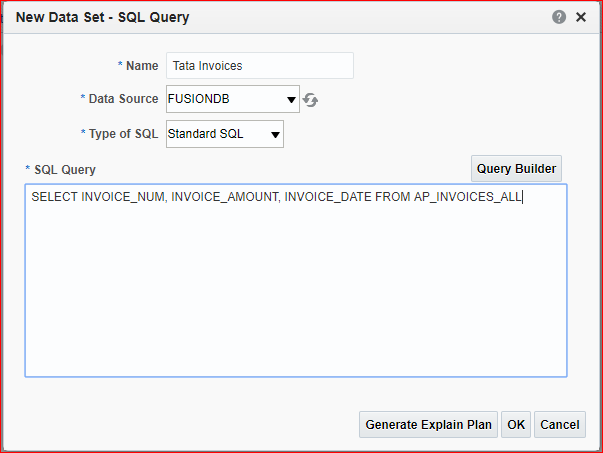 Ok >> Data tab >> Rows: 50; Click on View >> Save As Sample Data >> Ok >> Save >> Select My Folder & Name: Tata Invoices >> Ok >> Look for Saved message >> Create Report >> Next >> Next >> Drag three columns and Drop at mentioned location & I have excluded grand totals row >> Next >> Finish >> Name: Tata Invoices1 >> Ok >> Click on View Report >> Excel >> Report gets downloaded in Excel :) 7. OTBI Reports In BI report we have to write the query in OTBI we do not have option to write query. Its just drag and drop of columns. Navigator >> Tools>> Reports and Analytics >> Create >> Analysis >> (The subject area which ends with 'Real Time' only to be used in OTBI) >> Select 'Payables Invoices - Transactions Real Time' >> Continue >> Expand >> We call folders as dimensions (Subject area >> dimensions >> columns) >> Business Unit >> Select Business Unit Name and click on add >> Supplier >> Select Supplier and click on add >> Supplier Site >> Select Business Unit Name and click on add Site >> Invoice Details >> General Information >> Select Invoice Number and click on add >> Invoice Details >> Invoice Amounts >> Select Invoice Amount and click on add >> Next >> Title: TCS Invoice Analysis; Table: Table; Click on preview >> Next >> In case we want to filter the data. Lets assume we want to filter data based on BU then expand 'Additional Layout Options' >> Select Business Unit Name from Columns section >> Move To >> Prompt For >> Next >> Next >> Next >> Select My Folders and Analysis Name: Tata Invoice OTBI Analysis >> Submit Search the name >> Click on ... >> View :) Go to invoice workbench >> Reports and Analytics >> Here also we can see OTBI (OTBI = Analysis) 8. Customer Conversion i) FBDI Download the template from OER(Oracle Enterprise Repository) or https://docs.oracle.com/cloud/farel12/financialscs_gs/OEFBF/Customer_Import_300919043_fbdi_7.htm#300919043) For XLSM template, right click and use "Save link as" and save file. Now go to cloud application and look for Customer Data Management >> Data Import. Under Tasks >> Create Data Import Batch >> Batch Name: Tata Customer Data Import Batch; Source System: Comma separated values; Object: Customer and Consumer >> Save and Close >> Copy the batch ID (300000176289359). Next go to spreadsheet and delete all records except first record. HZ_IMP_PARTIES_T*Batch Identifier Ok >> Data tab >> Rows: 50; Click on View >> Save As Sample Data >> Ok >> Save >> Select My Folder & Name: Tata Invoices >> Ok >> Look for Saved message >> Create Report >> Next >> Next >> Drag three columns and Drop at mentioned location & I have excluded grand totals row >> Next >> Finish >> Name: Tata Invoices1 >> Ok >> Click on View Report >> Excel >> Report gets downloaded in Excel :) 7. OTBI Reports In BI report we have to write the query in OTBI we do not have option to write query. Its just drag and drop of columns. Navigator >> Tools>> Reports and Analytics >> Create >> Analysis >> (The subject area which ends with 'Real Time' only to be used in OTBI) >> Select 'Payables Invoices - Transactions Real Time' >> Continue >> Expand >> We call folders as dimensions (Subject area >> dimensions >> columns) >> Business Unit >> Select Business Unit Name and click on add >> Supplier >> Select Supplier and click on add >> Supplier Site >> Select Business Unit Name and click on add Site >> Invoice Details >> General Information >> Select Invoice Number and click on add >> Invoice Details >> Invoice Amounts >> Select Invoice Amount and click on add >> Next >> Title: TCS Invoice Analysis; Table: Table; Click on preview >> Next >> In case we want to filter the data. Lets assume we want to filter data based on BU then expand 'Additional Layout Options' >> Select Business Unit Name from Columns section >> Move To >> Prompt For >> Next >> Next >> Next >> Select My Folders and Analysis Name: Tata Invoice OTBI Analysis >> Submit Search the name >> Click on ... >> View :) Go to invoice workbench >> Reports and Analytics >> Here also we can see OTBI (OTBI = Analysis) 8. Customer Conversion i) FBDI Download the template from OER(Oracle Enterprise Repository) or https://docs.oracle.com/cloud/farel12/financialscs_gs/OEFBF/Customer_Import_300919043_fbdi_7.htm#300919043) For XLSM template, right click and use "Save link as" and save file. Now go to cloud application and look for Customer Data Management >> Data Import. Under Tasks >> Create Data Import Batch >> Batch Name: Tata Customer Data Import Batch; Source System: Comma separated values; Object: Customer and Consumer >> Save and Close >> Copy the batch ID (300000176289359). Next go to spreadsheet and delete all records except first record. HZ_IMP_PARTIES_T*Batch Identifier | 300000176289359 | |
| Party Original System | CSV | |
| Party Original System Reference | TATA_CUST_01 | |
| Insert Update Indicator | I | |
| *Party Type | ORGANIZATION | |
| Party Usage Code | CUSTOMER | |
| Organization Name | Tata Customer 01 | |
| DUNS Number | 123456789 | |
| HZ_IMP_PARTYSITES_T*Batch Identifier | 300000176289359 | |
| Party Original System | CSV | |
| Party Original System Reference | TATA_CUST_01 | |
| Party Site Original System | CSV | |
| Party Site Original System Reference | TATA_CUST_PS_01 | |
| Location Original System | CSV | |
| Location Original System Reference | TATA_CUST_LOC_01 | |
| Insert Update Indicator | I | |
| Party Site Name | Tata Customer Site 01 | |
| Party Site From Date | 2019/01/01 | |
| Mail Stop | MS 6OP | |
| *Identifying Address | Y | |
| HZ_IMP_PARTYSITEUSES_T *Batch Identifier | 300000176289359 | |
| Party Original System | CSV | |
| Party Original System Reference | TATA_CUST_01 | |
| Party Site Original System | CSV | |
| Party Site Original System Reference | TATA_CUST_PS_01 | |
| *Party Site Use Type | BILL_TO | |
| Primary Indicator | Y | |
| Insert Update Indicator | I | |
| From Date | 2019/01/01 | |
| Party Site Use Original System | CSV | |
| Original System Party Site Use Reference | TATA_CUST_PSU_01 | |
| HZ_IMP_ACCOUNTS_T*Batch Identifier | 300000176289359 | |
| Customer Account Source System | CSV | |
| Customer Account Source System Reference | TATA_CUST_ACCOUNT_01 | |
| Party Original System | CSV | |
| Party Original System Reference | TATA_CUST_01 | |
| Account Number | TATA_CUST_ACCOUNT_01 | |
| Insert Update Indicator | I | |
| Account Type | R | |
| Account Description | Tata Customer Account 01 | |
| Account Established Date | 2019/01/01 | |
| HZ_IMP_ACCTSITES_T*Batch Identifier | 300000176289359 | |
| Customer Account Source System | CSV | |
| Customer Account Source System Reference | TATA_CUST_ACCOUNT_01 | |
| Account Site Source System | CSV | |
| Account Site Source System Reference | TATA_CUST_AS_01 | |
| Party Site Original System | CSV | |
| Party Site Original System Reference | TATA_CUST_PS_01 | |
| Insert Update Indicator | I | |
| *Account Address Set | TATA_RDS_CUST_SIT | |
| From Date | 2019/01/01 | |
| Key Account | Y | |
| HZ_IMP_ACCTSITEUSES_T*Batch Identifier | 300000176289359 | |
| Account Site Source System | CSV | |
| Account Site Source System Reference | TATA_CUST_AS_01 | |
| Account Site Purpose Source System | CSV | |
| Account Site Purpose Source System Reference | TATA_CUST_ASU_01 | |
| *Purpose | BILL_TO | |
| Primary Indicator | Y | |
| Insert Update Indicator | I | |
| Site | London | |
| *Account Address Purpose Set | TATA_RDS_CUST_SIT | |
| Purpose From Date | 2019/01/01 | |
| HZ_IMP_LOCATIONS_T*Batch Identifier | 300000176289359 | |
| Location Original System | CSV | |
| Location Original System Reference | TATA_CUST_LOC_01 | |
| Insert Update Indicator | I | |
| Country | GB | |
| Address Line 1 | Cust Address Line 01 | |
| City | London | |
| Address Effective Date | 2019/01/01 | |
| After entering values in respective tabs go to 'Instructions and CSV Generation' and click on 'Generate CSV File'. Go to ESS job page and schedule new process 'Load Interface File for Import' >> Import Process: Import Trading Community Data in Bulk; Data File: Upload the csv file >> Submit. Go to Customer Data Management >> Data Import >> Actions >> Import >> Select your choice of Import Process Mode >> Submit Verify new Customers in Receivables >> Billing >> Tasks >> Manage Customers :) ii) 'Upload Customers from Spreadsheet' Receivables >> Billing >> Tasks >> Upload Customers from Spreadsheet >> Download Customer Spreadsheet Template >> 'UploadCustomersTemplate' file gets downloaded Go to Instructions tab and click on 'Show Extensible Attributes' (This will display hidden columns) Customers*Source System | UK Customer Sales | |
| *Customer Number | 12345 | |
| *Customer Name | Tata Customer 02 | |
| *Account Number | TATA_CUST_ACCOUNT_02 | |
| Account Description | Tata Customer Account 02 | |
| Account Established Date | 2019/01/01 | |
| Customer Profile Class | Tata Profile Class | |
| *Account Address Set | TATA_RDS_CUST_SIT | |
| *Location Source Reference | TATA_CUST_LOC_02 | |
| *Address Line 1 | Cust Address Line 01 | |
| City | London | |
| *Country | GB | |
| *Identifying Address | Y | |
| *Site Purpose Source Reference | TATA_CUST_ASU_02 | |
| *Purpose | BILL_TO | |
| *Site Purpose Primary Indicator | Y | |
| Payment Method | Check | |
| Primary Payment Method Indicator | Y | |
Go to Instructions tab and click on 'Generate CSV File' >> Save csv file >> Ok Receivables >> Billing >> Tasks >> Upload Customers from Spreadsheet >> Click on 'Upload Customers from Spreadsheet' button >> Batch Name: Tata Customer 02 Upload; Data File: Choose .zip file >> Submit >> Check for completion status and count of successful records :) 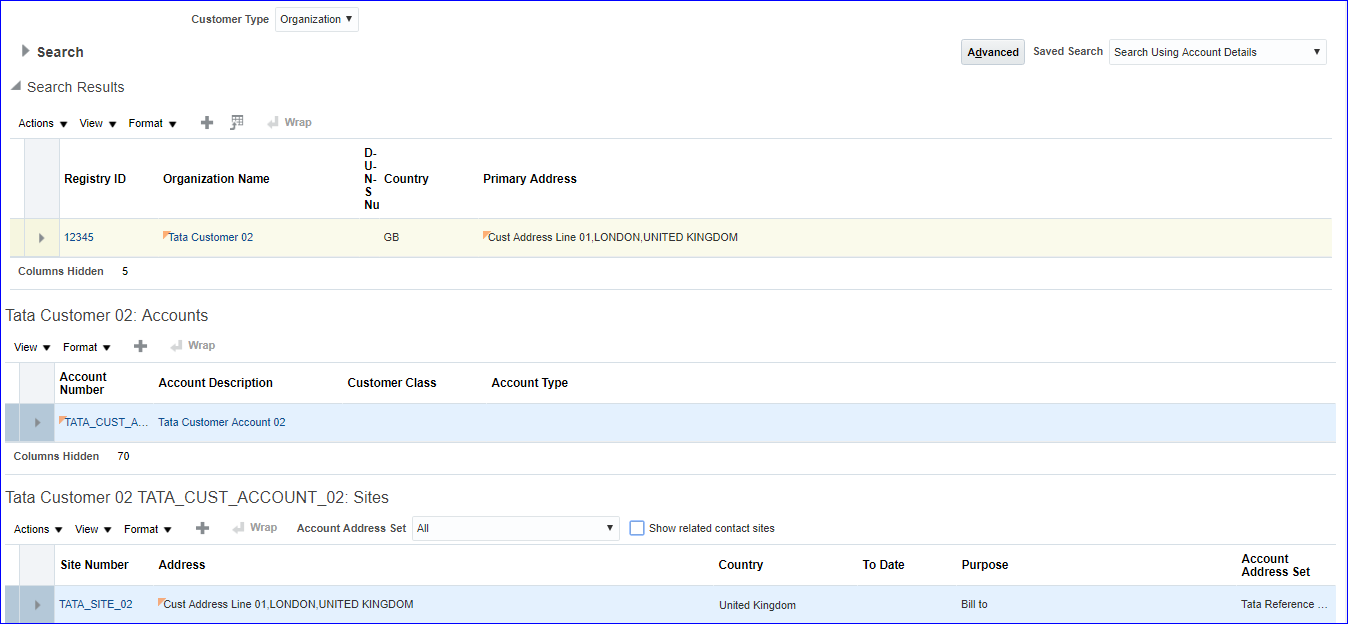 9. AR Invoice Conversioni) AutoAccounting configuration for all account types Implementation Project >> Task 'Manage AutoAccounting Rules' >> Search your BU to verify which account types have been created and create rest all accounts with some random account type. Create: Business Unit: Tata Business Unit; Account Type: AutoInvoice Clearing Company: C01; Deaprtment: D01; Account: A01 (Just give some random account value) Business Unit: Tata Business Unit; Account Type: Bills Receivable Company: C01; Deaprtment: D01; Account: A01 Business Unit: Tata Business Unit; Account Type: Deferred Tax Company: C01; Deaprtment: D01; Account: A01 Business Unit: Tata Business Unit; Account Type: Factored Bills Receivable Company: C01; Deaprtment: D01; Account: A01 Business Unit: Tata Business Unit; Account Type: Freight Company: C01; Deaprtment: D01; Account: A01 Business Unit: Tata Business Unit; Account Type: Remitted Bills Receivable Company: C01; Deaprtment: D01; Account: A01 Business Unit: Tata Business Unit; Account Type: Tax Company: C01; Deaprtment: D01; Account: A01 Business Unit: Tata Business Unit; Account Type: Unbilled Receivable Company: C01; Deaprtment: D01; Account: A01 Business Unit: Tata Business Unit; Account Type: Unearned Revenue Company: C01; Deaprtment: D01; Account: A01 Business Unit: Tata Business Unit; Account Type: Unpaid Bills Receivable Company: C01; Deaprtment: D01; Account: A01 Save and Close ii) Transaction source: Imported In implementation project search for task 'Manage Transaction Sources' >> Search Name: Receivables Import >> Select the line and click on Edit >> Enter your Legal Entity (Tata Legal Entity) and Standard Transaction Type (Tata Invo Trans Type) >> Save and Close iii) Create line transaction DFF In implementation project search for task 'Manage Receivables Descriptive Flexfields' >> Search for Name: Line Transactions >> Select the line and click on Edit >> Manage Contexts >> Create >> Display Name: Tata AutoInvoice; Context Code: Tata AutoInvoice; API Name: TataAutoInvoice; Description: Tata AutoInvoice >> Save >> Under Context Sensitive Segments, click on Create >> Name: Tata_Context_Segments; Code: Tata_Context_Segments; API Name: TataContextSegments; Description: Tata_Context_Segments >> Create Value Set 9. AR Invoice Conversioni) AutoAccounting configuration for all account types Implementation Project >> Task 'Manage AutoAccounting Rules' >> Search your BU to verify which account types have been created and create rest all accounts with some random account type. Create: Business Unit: Tata Business Unit; Account Type: AutoInvoice Clearing Company: C01; Deaprtment: D01; Account: A01 (Just give some random account value) Business Unit: Tata Business Unit; Account Type: Bills Receivable Company: C01; Deaprtment: D01; Account: A01 Business Unit: Tata Business Unit; Account Type: Deferred Tax Company: C01; Deaprtment: D01; Account: A01 Business Unit: Tata Business Unit; Account Type: Factored Bills Receivable Company: C01; Deaprtment: D01; Account: A01 Business Unit: Tata Business Unit; Account Type: Freight Company: C01; Deaprtment: D01; Account: A01 Business Unit: Tata Business Unit; Account Type: Remitted Bills Receivable Company: C01; Deaprtment: D01; Account: A01 Business Unit: Tata Business Unit; Account Type: Tax Company: C01; Deaprtment: D01; Account: A01 Business Unit: Tata Business Unit; Account Type: Unbilled Receivable Company: C01; Deaprtment: D01; Account: A01 Business Unit: Tata Business Unit; Account Type: Unearned Revenue Company: C01; Deaprtment: D01; Account: A01 Business Unit: Tata Business Unit; Account Type: Unpaid Bills Receivable Company: C01; Deaprtment: D01; Account: A01 Save and Close ii) Transaction source: Imported In implementation project search for task 'Manage Transaction Sources' >> Search Name: Receivables Import >> Select the line and click on Edit >> Enter your Legal Entity (Tata Legal Entity) and Standard Transaction Type (Tata Invo Trans Type) >> Save and Close iii) Create line transaction DFF In implementation project search for task 'Manage Receivables Descriptive Flexfields' >> Search for Name: Line Transactions >> Select the line and click on Edit >> Manage Contexts >> Create >> Display Name: Tata AutoInvoice; Context Code: Tata AutoInvoice; API Name: TataAutoInvoice; Description: Tata AutoInvoice >> Save >> Under Context Sensitive Segments, click on Create >> Name: Tata_Context_Segments; Code: Tata_Context_Segments; API Name: TataContextSegments; Description: Tata_Context_Segments >> Create Value Set 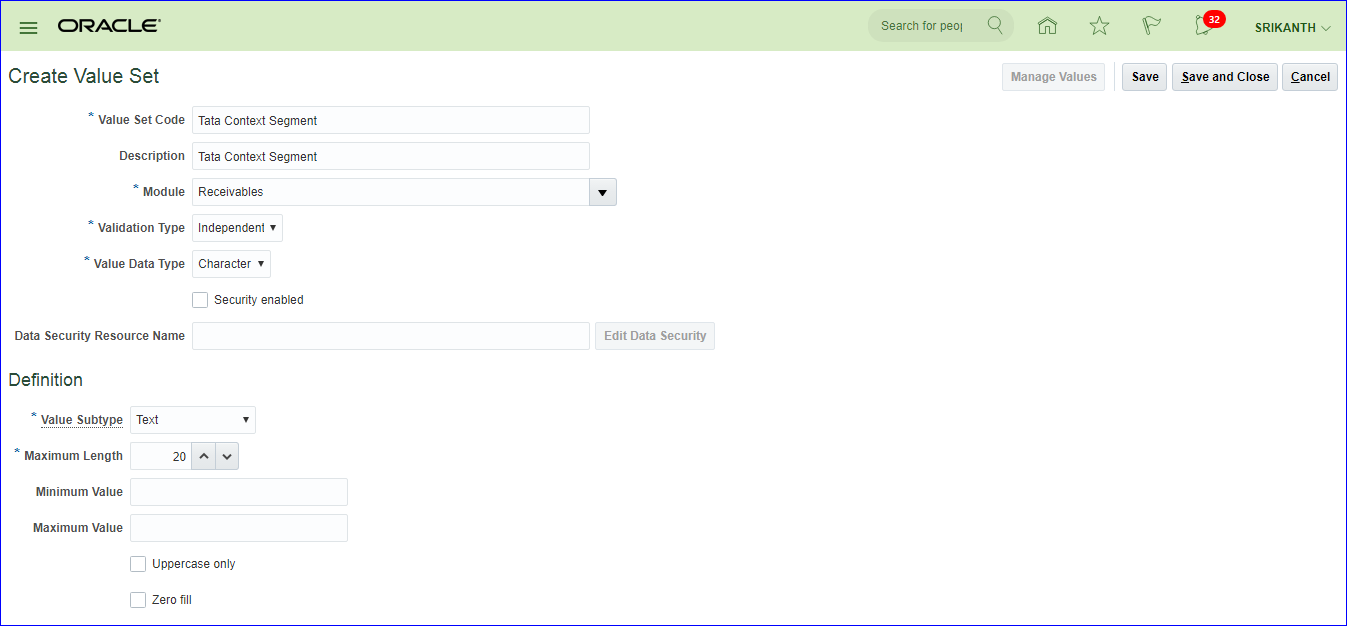 Save and Close Save and Close 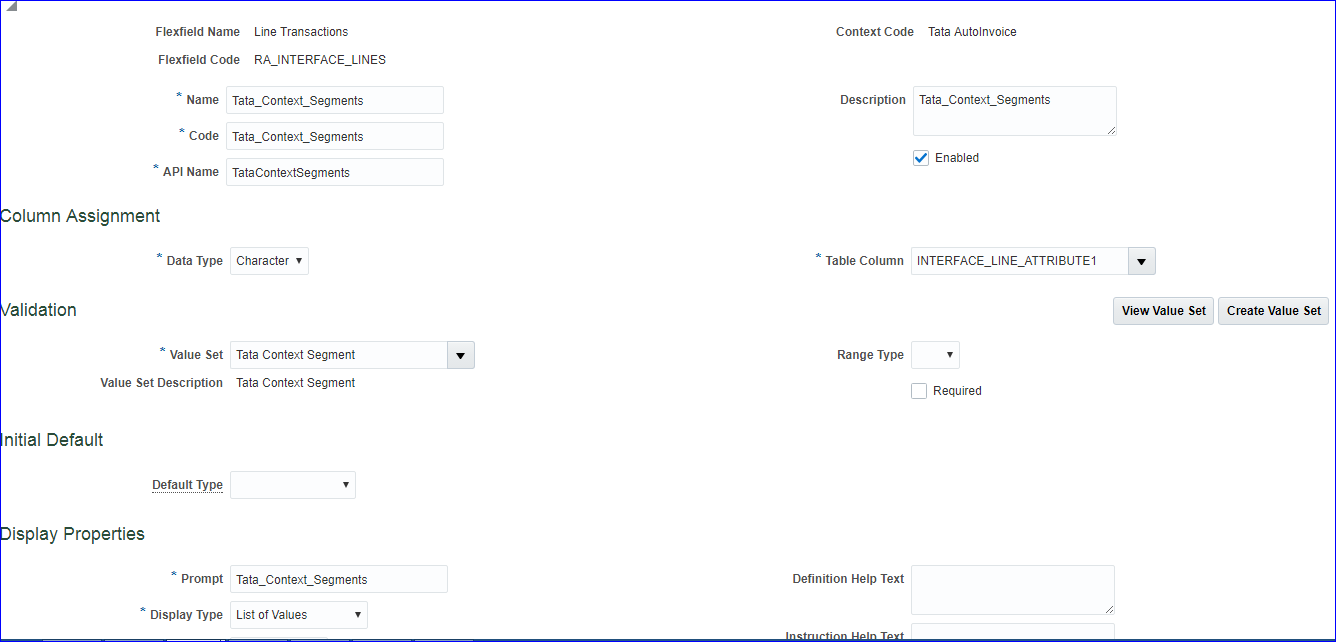 Save and Close >> Save and Close >> Save and Close >> Save and Close >> Deploy Flexfield >> Look for confirmation message and click on Ok >> Done Download the template from OER(Oracle Enterprise Repository) or https://docs.oracle.com/en/cloud/saas/financials/18b/oefbf/AutoInvoice-Import-312157752-fbdi-1.html For XLSM template, right click and use "Save link as" and save file. In the same page we can find Scheduled process (Import AutoInvoice) which needs to be executed. Fetch the existing values from instance. Receivables >> Billing >> Tasks >> Create Transaction RA_INTERFACE_LINES_ALL*Business Unit Name Save and Close >> Save and Close >> Save and Close >> Save and Close >> Deploy Flexfield >> Look for confirmation message and click on Ok >> Done Download the template from OER(Oracle Enterprise Repository) or https://docs.oracle.com/en/cloud/saas/financials/18b/oefbf/AutoInvoice-Import-312157752-fbdi-1.html For XLSM template, right click and use "Save link as" and save file. In the same page we can find Scheduled process (Import AutoInvoice) which needs to be executed. Fetch the existing values from instance. Receivables >> Billing >> Tasks >> Create Transaction RA_INTERFACE_LINES_ALL*Business Unit Name | Tata Business Unit | |
| *Transaction Batch Source Name | Receivables Import | |
| *Transaction Type Name | Tata Invo Trans Type | |
| Payment Terms | Tata Pay Terms | |
| Transaction Date | SYSDATE | |
| Accounting Date | SYSDATE | |
| Bill-to Customer Account Number | 20111 | |
| Bill-to Customer Site Number | 879872 | |
| Ship-to Customer Account Number | 20111 | |
| Ship-to Customer Site Number | 879872 | |
| *Transaction Line Type | LINE | |
| *Transaction Line Description | Desktop | |
| *Currency Code | GBP | |
| *Currency Conversion Type | User | |
| Currency Conversion Date | SYSDATE | |
| Currency Conversion Rate | 1.00 | |
| Transaction Line Amount | 1000.00 | |
| Transaction Line Quantity | 1.00 | |
| Unit Selling Price | 1000.00 | |
| Line Transactions Flexfield Context | Tata AutoInvoice | |
| Line Transactions Flexfield Segment 1 | 10001 | |
| RA_INTERFACE_DISTRIBUTIONS_ALL*Business Unit Name | Tata Business Unit | |
| *Account Class | REC | |
| Amount | 1000.00 | |
| Percent | 100.00 | |
| Line Transactions Flexfield Context | Tata AutoInvoice | |
| Line Transactions Flexfield Segment 1 | 10001 | |
| Accounting Flexfield Segment 1 | C01 | |
| Accounting Flexfield Segment 2 | D01 | |
| Accounting Flexfield Segment 3 | A01 | |
| RA_INTERFACE_DISTRIBUTIONS_ALL*Business Unit Name | Tata Business Unit | |
| *Account Class | REV | |
| Amount | 1000.00 | |
| Percent | 100.00 | |
| Line Transactions Flexfield Context | Tata AutoInvoice | |
| Line Transactions Flexfield Segment 1 | 10001 | |
| Accounting Flexfield Segment 1 | C01 | |
| Accounting Flexfield Segment 2 | D01 | |
| Accounting Flexfield Segment 3 | R01 | |
Click on 'Generate CSV File' in 'Instructions and CSV Generation' tab Go to ESS job page >> Tools >> Scheduled Processes >> Schedule New Process >> Search for 'Load Interface File for Import' >> Import Process*: Import AutoInvoice and upload the zip file >> Submit Again re-open ESS job page and submit 'Import AutoInvoice' >> Business Unit: Tata Business Unit; Transaction Source: Receivables Import; Default Date: Today's date >> Submit 10. Journal creation i) ADFdi General Accounting >> Journals >> Tasks >> Create Journal in Spreadsheet ;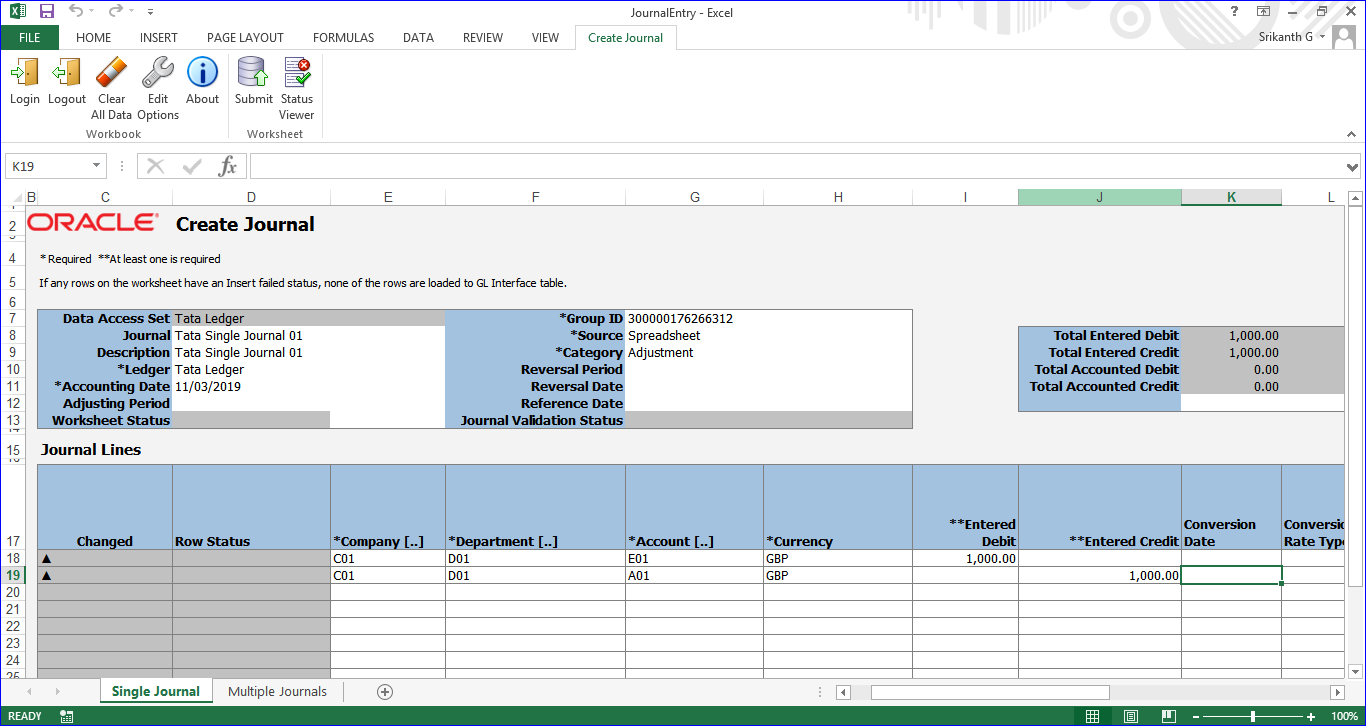 Go to Create Journal tab >> Submit >> Submission Option: Submit Journal Import and Posting; Import Descriptive Flexfields: No >> Submit. Now verify the entry under Manage Journals :) ii) FBDI a) Download the template from OER(Oracle Enterprise Repository) - Search for 'oracle oer' in google or direct link is 'https://docs.oracle.com/en/cloud/saas/financials/r13-update17d/oefbf/Journal-Import-304233274-fbdi-23.html' >> For XLSM template (JournalImportTemplate.xlsm), right click and use "Save link as">> Also we can see the Scheduled process 'Import Journals' Fetch Ledger ID: FSM >> Tasks >> Search >> 'Manage Primary Ledgers' >> Select your record >> View >> Columns >> Select Ledger ID*Status Code Go to Create Journal tab >> Submit >> Submission Option: Submit Journal Import and Posting; Import Descriptive Flexfields: No >> Submit. Now verify the entry under Manage Journals :) ii) FBDI a) Download the template from OER(Oracle Enterprise Repository) - Search for 'oracle oer' in google or direct link is 'https://docs.oracle.com/en/cloud/saas/financials/r13-update17d/oefbf/Journal-Import-304233274-fbdi-23.html' >> For XLSM template (JournalImportTemplate.xlsm), right click and use "Save link as">> Also we can see the Scheduled process 'Import Journals' Fetch Ledger ID: FSM >> Tasks >> Search >> 'Manage Primary Ledgers' >> Select your record >> View >> Columns >> Select Ledger ID*Status Code | NEW | NEW |
| *Ledger ID | 300000176281847 | 300000176281847 |
| *Effective Date of Transaction | SYSDATE | SYSDATE |
| *Journal Source | Balance Transfer | Balance Transfer |
| *Journal Category | Remote Transfer | Remote Transfer |
| *Currency Code | GBP | GBP |
| *Journal Entry Creation Date | SYSDATE | SYSDATE |
| *Actual Flag | A | A |
| Segment1 | C01 | C01 |
| Segment2 | D01 | D01 |
| Segment3 | E01 | A01 |
| Entered Debit Amount | 3000.00 | |
| Entered Credit Amount | 3000.00 | |
| REFERENCE4 (Journal Entry Name) | Tata FBDI Journal 01 | Tata FBDI Journal 01 |
Save >> Instructions and CSV Generation tab >> Click on 'Generate CSV File' >> Save csv/ zip file Scheduled Processes >> Load Interface File for Import >> Import Process: Import Journals and Data File: Upload zip file >> Submit. Next submit 'Import Journals' job >> Source: Balance Transfer; Ledger: Tata Ledger; No Group ID >> Submit. Now verify the entry under Manage Journals :)
Testing Fusion page
Srikanth Testing
------------------------------------------------------------------------------------------------------------------------------------------------------------------------------------
Supplier Conversion in Oracle Fusion Application
File-Based Data Import (FBDI) Process Guide
Supplier Conversion in Oracle Fusion is the process of migrating supplier data from legacy or external systems into Oracle Fusion using File-Based Data Import (FBDI) templates. This guide walks through the end-to-end process of downloading the required templates, preparing data, generating CSV/ZIP files, uploading them to Oracle's Universal Content Management (UCM) system, and running the necessary ESS (Enterprise Scheduler Service) jobs to load the data into Oracle Fusion base tables.
There are dedicated FBDI templates for each supplier data entity, including:
- Supplier Profile (Header)
- Supplier Addresses
- Supplier Sites
- Supplier Site Assignments
Step 1: Download the FBDI Templates from OER
🛠 Tool: Oracle Enterprise Repository (OER)
Oracle provides official FBDI templates through the Oracle Enterprise Repository (OER). These templates are pre-structured Excel/XLSM files designed for bulk data import into Oracle Fusion.
How to access the templates:
- Open your browser and search for 'oracle oer' on Google, or navigate directly to:
https://www.oracle.com/webfolder/technetwork/docs/HTML/oer-redirect.html
- On the OER page, click on the Procurement tab to filter relevant content.
- Click on Release 13 (Update 17b) to access the correct version of the templates.
- Navigate to the Use section, then click on Get started with file-based data import.
- Open the links in a new tab for each of the following templates: Suppliers, Supplier Addresses, Supplier Sites, and Supplier Site Assignments.
- To download each XLSM template file, right-click on the link and choose Save link as to save the file to your local system.
📌 Note: The template links also contain important information such as the ESS Job names and UCM (Universal Content Management) paths that will be required later in the conversion process.
Step 2: Enter Supplier Data into the SupplierImportTemplate
🛠 Tool: FBDI Template — SupplierImportTemplate.xlsm
Open the downloaded SupplierImportTemplate.xlsm file in Microsoft Excel. This template contains sample records which need to be cleaned up before entering your actual data.
Delete all sample records except the first row, and use that first row as your data entry row. Click Show Additional Attributes to see all available columns, and delete any values in columns not listed below.
Enter the following values for the Supplier Profile (Header):
| Import Action | CREATE |
| Supplier Name | Tata FBDI Supplier |
| Tax Organization Type | Corporation |
| Supplier Type | Supplier |
| Business Relationship | SPEND_AUTHORIZED |
| Payment Method | CHECK |
📌 Note: The Import Action field must always be set to CREATE when adding new supplier records. Ensure there are no extra spaces or special characters in the Supplier Name field, as it will be referenced in subsequent templates.
Step 3: Generate the CSV and ZIP Files from the Template
🛠 Tool: FBDI Template Macro — Generate CSV File
Once the data has been entered in the FBDI template, the next step is to convert the Excel data into a CSV format that Oracle Fusion can process. Oracle's FBDI templates include built-in macros to automate this process.
Steps to generate the ZIP file:
- In the FBDI template, navigate to the Instructions and CSV Generation sheet (tab at the bottom of the workbook).
- Click on the Generate CSV File button. This macro will automatically convert your data sheet into a CSV file.
- The tool will create both a CSV file and a ZIP archive named PozSuppliersInt.zip, which will be saved to your local system.
📌 Note: The ZIP file is the required format for uploading into Oracle Fusion. Do not manually unzip or modify the contents of the ZIP file, as this may cause import errors.
Step 4: Upload the ZIP File into UCM (Optional)
🛠 Tool: UCM — Universal Content Management (File Import and Export)
This step is optional. You can upload the ZIP file directly to UCM using Oracle Fusion's File Import and Export utility before running the ESS job. Alternatively, you can skip this step and upload the file directly in Step 5 when scheduling the ESS job.
Navigation path to upload the file:
- Go to Navigator → Tools → File Import and Export.
- Click the Upload button on the top-right.
- In the upload dialog, select the PozSuppliersInt.zip file from your local system.
- Set the Account field to: prc/supplier/import
- Click Save and Close to complete the upload.
Step 5: Populate Interface Tables Using the ESS Job
🛠 Tool: ESS Job — Scheduled Processes (Load Interface File for Import)
With the ZIP file now available in UCM, the next step is to run an ESS (Enterprise Scheduler Service) job to load the data from the ZIP file into Oracle Fusion's interface staging tables. The interface table used for this process is POZ_SUPPLIERS_INT.
Navigation path to submit the ESS job:
- Go to Navigator → Tools → Scheduled Processes.
- Click Schedule New Process.
- In the Name field, search for and select: Load Interface File for Import.
- Click OK to open the job parameters screen.
- Set the Import Process parameter to: Import Suppliers.
- Set the Data File parameter to: PozSuppliersInt.zip.
- Click Submit to run the job.
📌 Note: The interface table POZ_SUPPLIERS_INT is populated after this job completes successfully. You can verify the job status from the Scheduled Processes page. The interface table name and UCM path can also be confirmed from the Suppliers tab in the OER template documentation (Step 1).
Step 6: Import Data into Base Tables Using the Import Suppliers Job
🛠 Tool: ESS Job — Scheduled Processes (Import Suppliers)
Once the data is loaded into the interface staging tables, a second ESS job must be run to validate and transfer the records into Oracle Fusion's actual base tables. This is the final step in the import process for supplier profiles.
Navigation path to submit the import job:
- Go to Navigator → Tools → Scheduled Processes.
- Click Schedule New Process.
- Search for and select the job: Import Suppliers.
- Click OK — no additional parameters need to be changed for this job.
- Click Submit to run the job.
Once the job completes successfully, navigate to the Suppliers module in Oracle Fusion to verify that the newly created supplier (e.g., Tata FBDI Supplier) appears correctly in the system.
Repeating Steps 2–6 for Remaining Templates
After completing the supplier profile import, repeat Steps 2 through 6 for each of the remaining three FBDI templates. Each template follows the same generate → upload → load → import cycle, but with different data fields and ESS job names. The required field values for each template are detailed below.
Template 2: SupplierAddressImportTemplate
🛠 Tool: FBDI Template — SupplierAddressImportTemplate.xlsm
This template is used to add physical address records to the supplier created in Step 2. The address is linked to the supplier by name and will be referenced in the Supplier Sites template.
| Import Action | CREATE |
| Supplier Name | Tata FBDI Supplier |
| Supplier Address Name | Tata FBDI Supplier Address |
| Country | GB |
| Address Line 1 | Tata FBDI Supplier Address 1 |
| City | Coventry |
| County | West Midlands |
| Postal Code | CV1 1DT |
| RFQ Or Bidding | Y |
| Ordering | Y |
| Pay | Y |
Template 3: SupplierSiteImportTemplate
🛠 Tool: FBDI Template — SupplierSiteImportTemplate.xlsm
Supplier Sites define the specific transactional sites associated with a supplier. Each site is linked to a Procurement Business Unit (BU) and an address. Sites control purchasing, payment, and sourcing behavior.
| Import Action | CREATE |
| Supplier Name | Tata FBDI Supplier |
| Procurement BU | Tata Business Unit |
| Address Name | Tata FBDI Supplier Address |
| Supplier Site | TATA FBDI Site |
| Sourcing Only | N |
| Purchasing | Y |
| Pay | Y |
| Primary Pay | Y |
📌 Note: The Supplier Site name must not exceed 15 characters in length. Values longer than 15 characters will cause validation errors during the import process.
Template 4: SupplierSiteAssignmentImportTemplate
🛠 Tool: FBDI Template — SupplierSiteAssignmentImportTemplate.xlsm
Supplier Site Assignments map a supplier site to specific Business Units (BUs) for billing, procurement, and client purposes. This step ensures that the supplier site is properly accessible across the required business units in Oracle Fusion.
| Import Action | CREATE |
| Supplier Name | Tata FBDI Supplier |
| Supplier Site | TATA FBDI Site |
| Procurement BU | Tata Business Unit |
| Client BU | Tata Business Unit |
| Bill-to BU | Tata Business Unit |
Process Summary
| Step | Action | Tool Used | Output |
| 1 | Download FBDI Templates | Oracle Enterprise Repository (OER) | 4 XLSM template files |
| 2 | Enter Supplier Header Data | SupplierImportTemplate.xlsm | Populated XLSM |
| 3 | Generate CSV & ZIP | FBDI Macro (Generate CSV) | PozSuppliersInt.zip |
| 4 | Upload to UCM (Optional) | File Import and Export | File in UCM |
| 5 | Load Interface Tables | ESS: Load Interface File for Import | POZ_SUPPLIERS_INT populated |
| 6 | Import to Base Tables | ESS: Import Suppliers | Supplier created in Fusion |