Fusion O2C
Last updated: 2/1/2026
Fusion O2C
1. Assign Inventory to BU using System Options
2. Setup Order Management parameters
3. Create Release Sequence Rules
4. Create Pick Slip Grouping Rules
5. Define Ship Confirm Rules
6. Create Picking Rules
7. Create Picking Rule Assignments
8. Create Pick Wave Release Rules
9. Create Staging Subinventory
10. Configure Shipping Parameters
11. Create Collector
12. Create Payment Terms
13. Create Statement Cycles
14. Create Customer profile class
15. Create Customer, site and address
16. Setup Customer account description
17. Assign reference data to BU
18. Assign Roles to User
19. Provide data access for user
20. Create Price list
21. Create Pricing Segment Value (Standard Lookups)
22. Create Pricing Strategy
23. Create Customer Pricing Profile
24. Create Pricing Segments
25. Create Pricing Strategy Assignment
26. Create Carriers (Shipping Methods)
27. Create Transaction Types
28. Create Planning Source System
29. Run "Collect Planning Data"
30. Create Sourcing Rules
31. Setup Sourcing Assignment Set
32. Set profile option: MSP_DEFAULT_ASSIGNMENT_SET
33. Create ATP rules
34. Run "Collect Planning Data"
35. Run "Refresh and Start the Order Promissing Server"
36. Create Sales Order
37. Validate Sales Order
38. Book Sales Order (Submit)
39. Pick Release
40. Confirm Pick Release
41. Confirm Shipping (Ship confirmation)
42. System Interfaces SO Information to AutoInvoice interface
43. Import Sales Order information into AR as AutoInvoice
44. Create Receipt and Apply on Open Transaction
Add 'Order Management' and 'Supply Chain Planning' offerings to Implementation project. 1. Assign Inventory to BU using System Options Implementation project >> Task 'Manage Receivables System Options' >> Search your BU since we already completed this set up in AR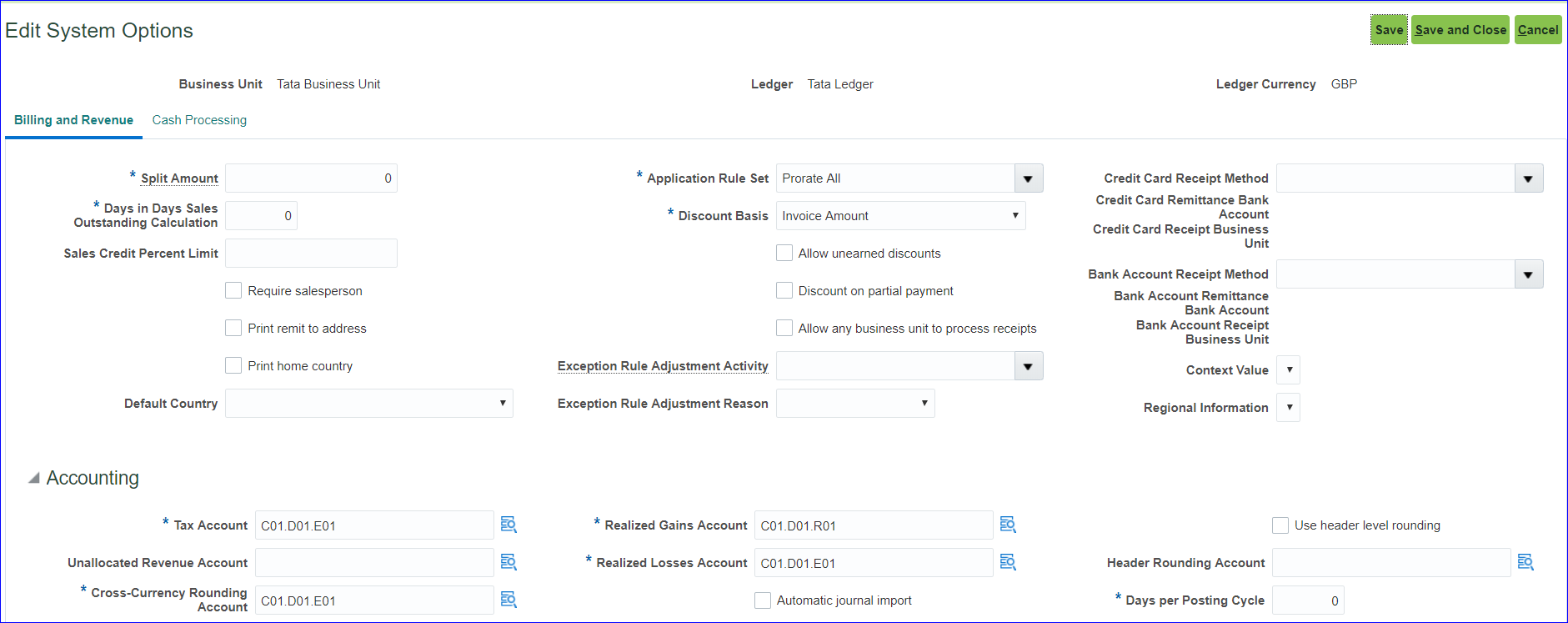
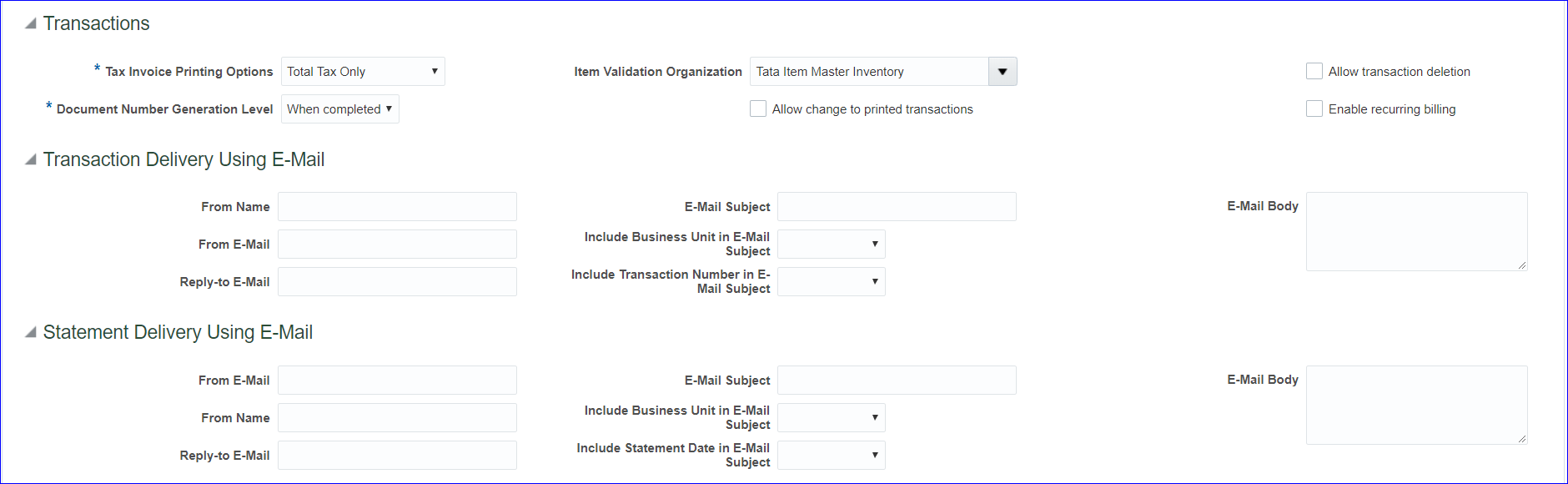
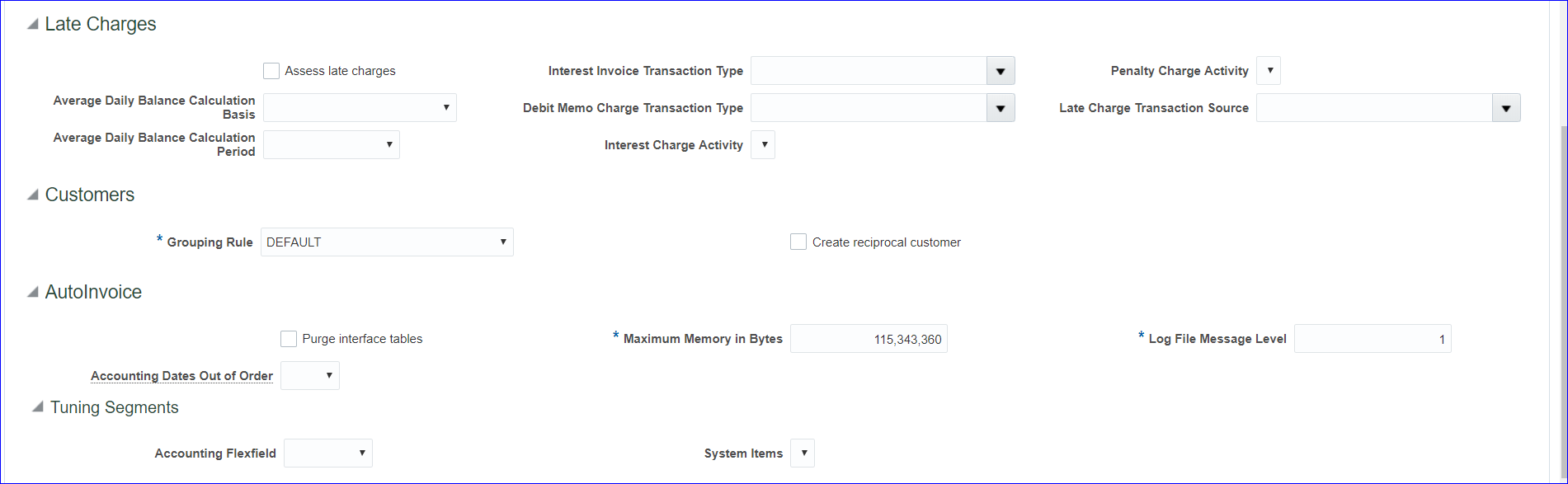 Save and Close
2. Setup Order Management parameters Implementation project >> Task 'Manage Order Management Parameters' (Path: Order Management > Define Orders) >> Select 'Item Validation Organization' and enter BU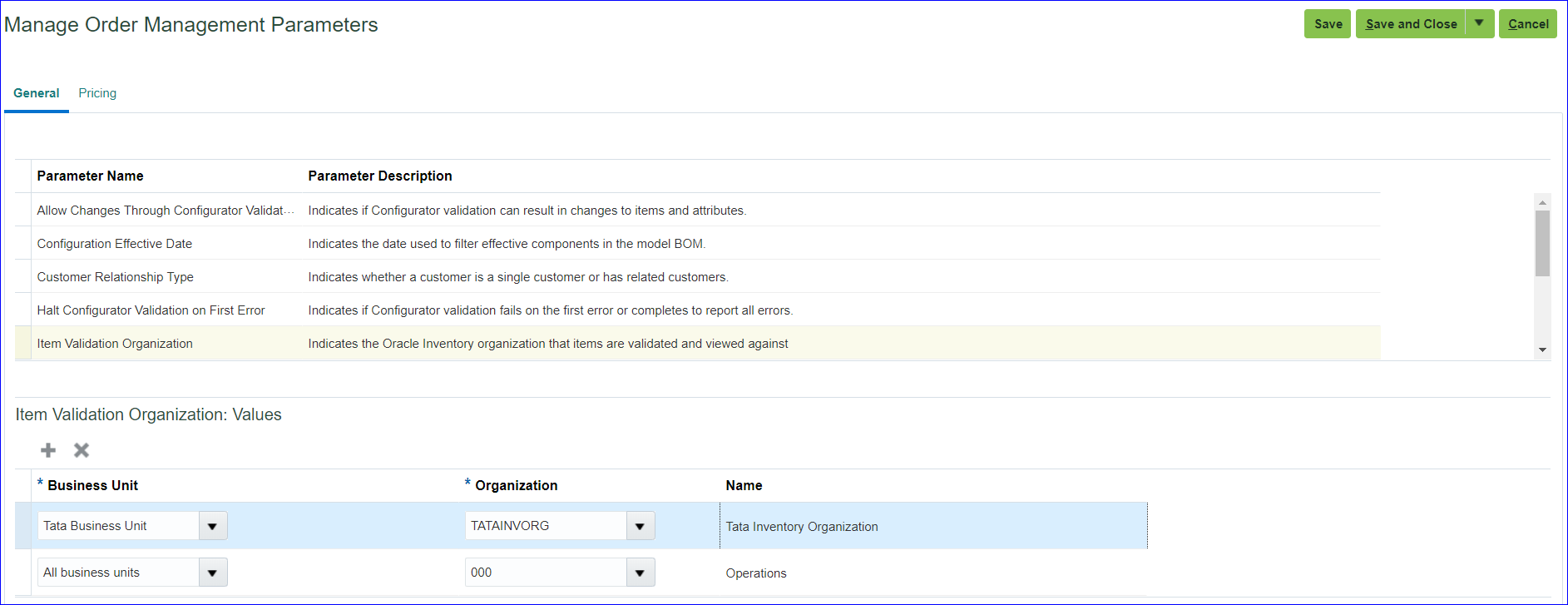 Save and Close
3. Create Release Sequence Rules Implementation project >> Task 'Manage Release Sequence Rules' >> Create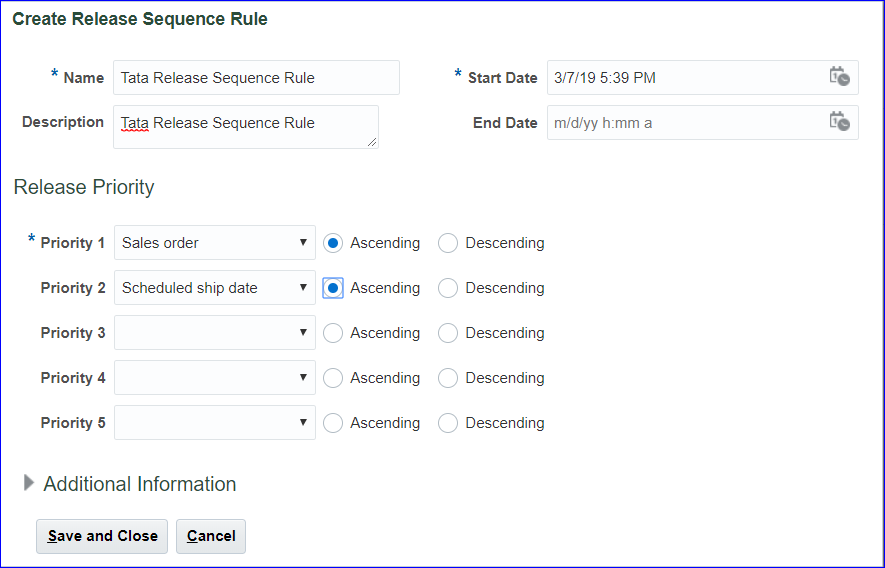 Save and Close >> Done
4. Create Pick Slip Grouping Rules Implementation project >> Task 'Manage Pick Slip Grouping Rules' >> Create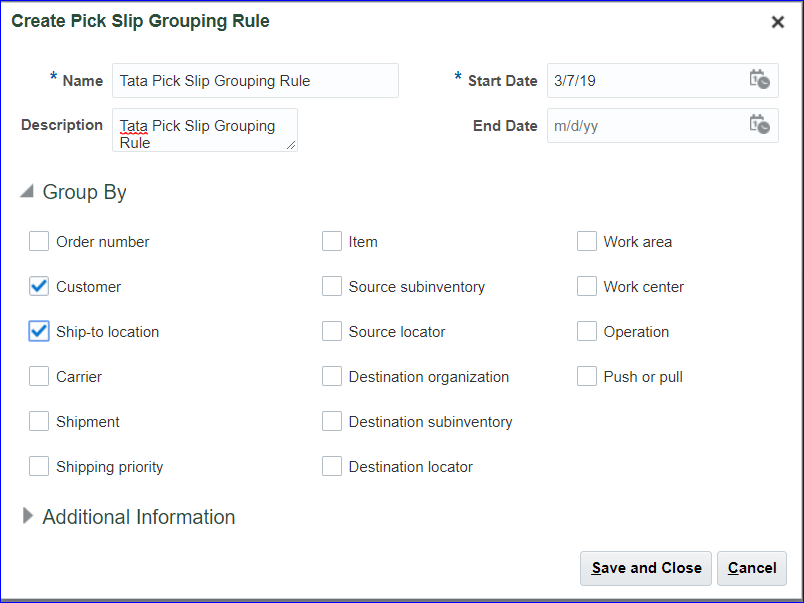 Save and Close >> Done
5. Define Ship Confirm Rules Implementation project >> Task 'Manage Ship Confirm Rules' >> Create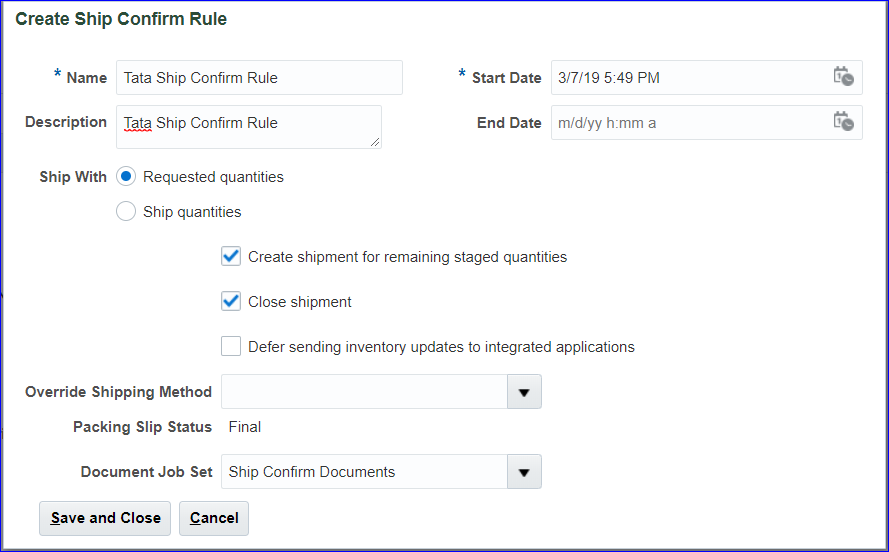 Save and Close >> Done
6. Create Picking Rules Implementation project >> Task 'Manage Picking Rules' >> Create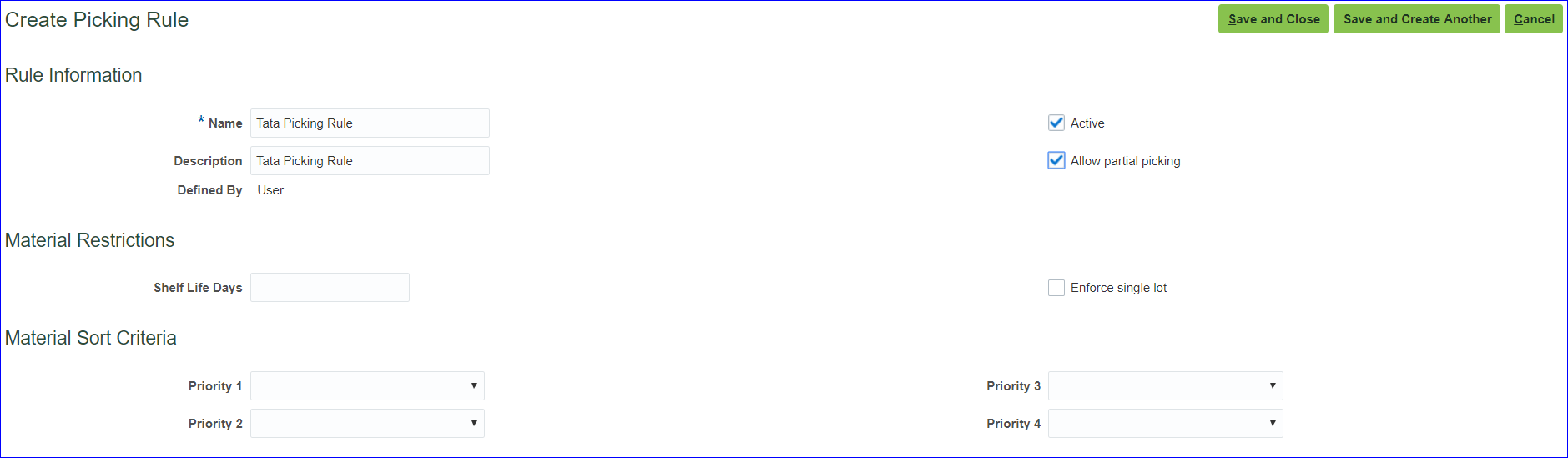 Save and Close
7. Create Picking Rule Assignments Implementation project >> Task 'Manage Picking Rule Assignments' >> Create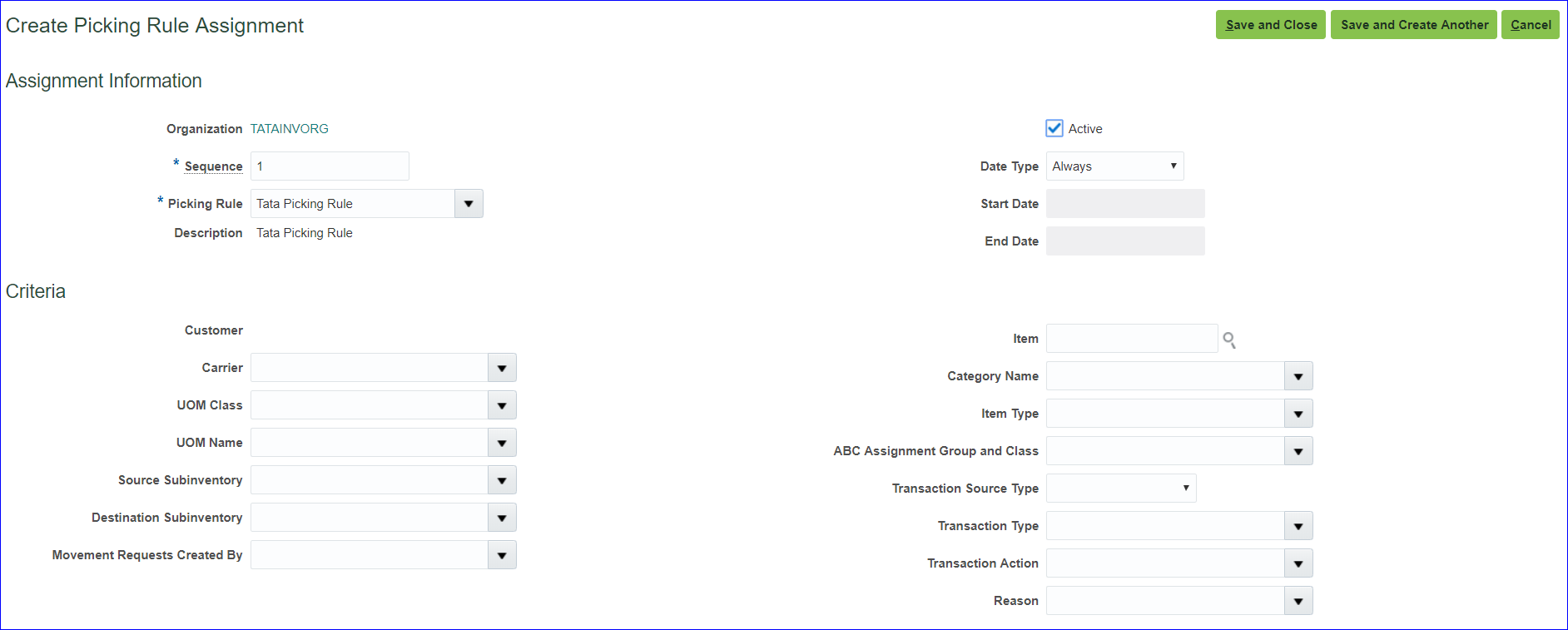 Save and Close >> Done
8. Create Pick Wave Release Rules In EBS this is Pick Slip Release Rule. Implementation project >> Task 'Manage Pick Wave Release Rules' >> Create Change the Release Status to 'All' instead of 'Unreleased' as per below image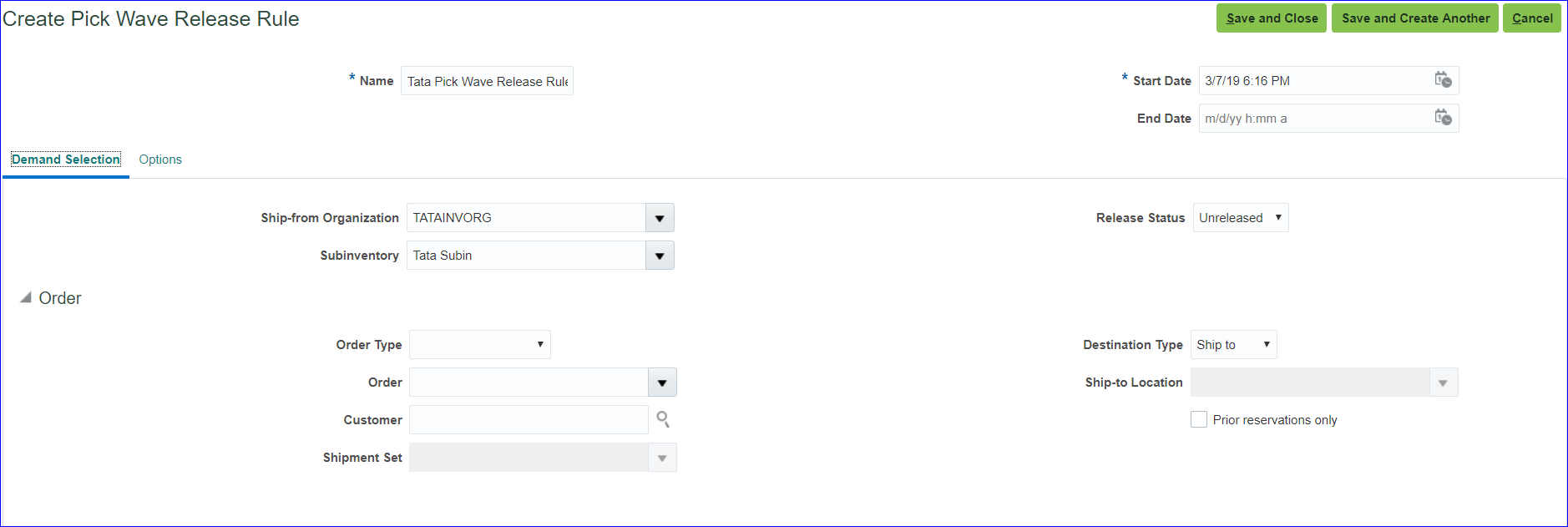 Options tab
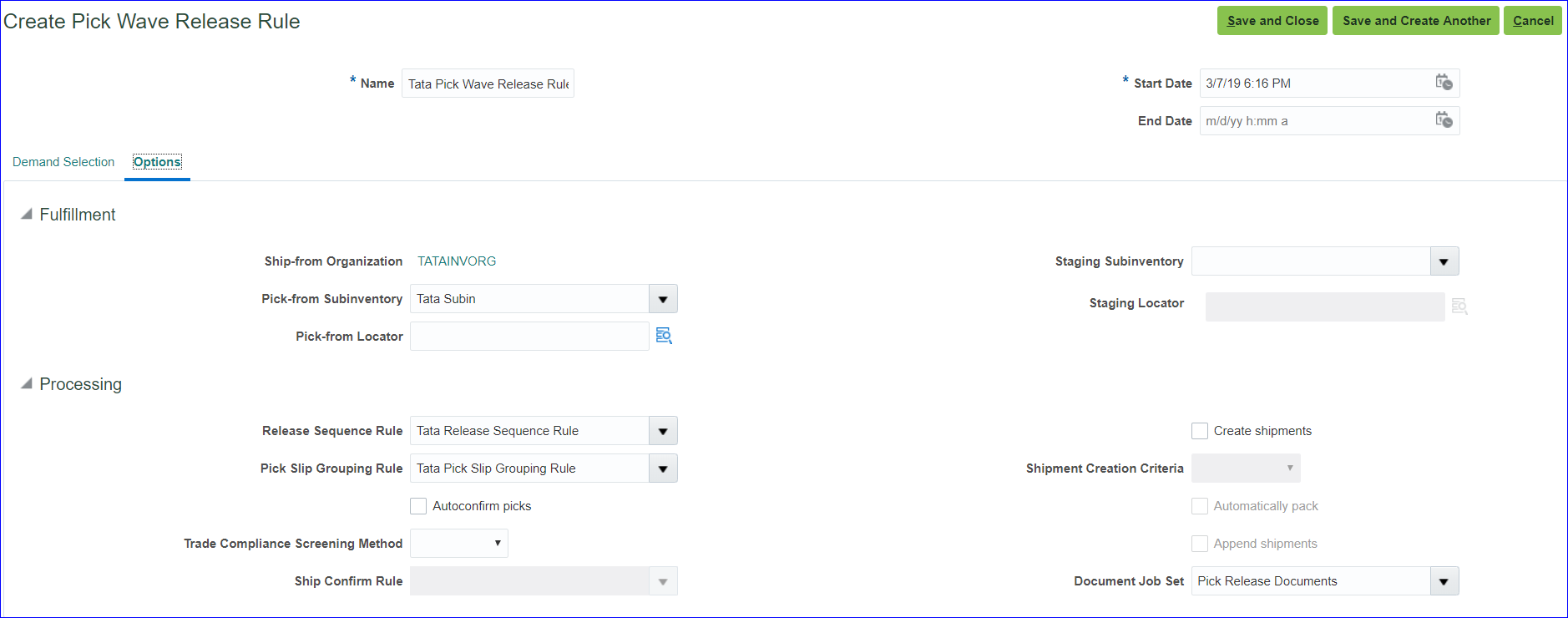 Save and Close
9. Create Staging Subinventory Implementation project >> Task 'Manage Subinventories and Locators' >> Enter Organization (TATAINVORG) >> Create >> Subinventory: Tata StgIn; Description: Tata Staging Subinventory >> Save and Close >> Done
10. Configure Shipping Parameters Implementation project >> Task 'Manage Shipping Parameters'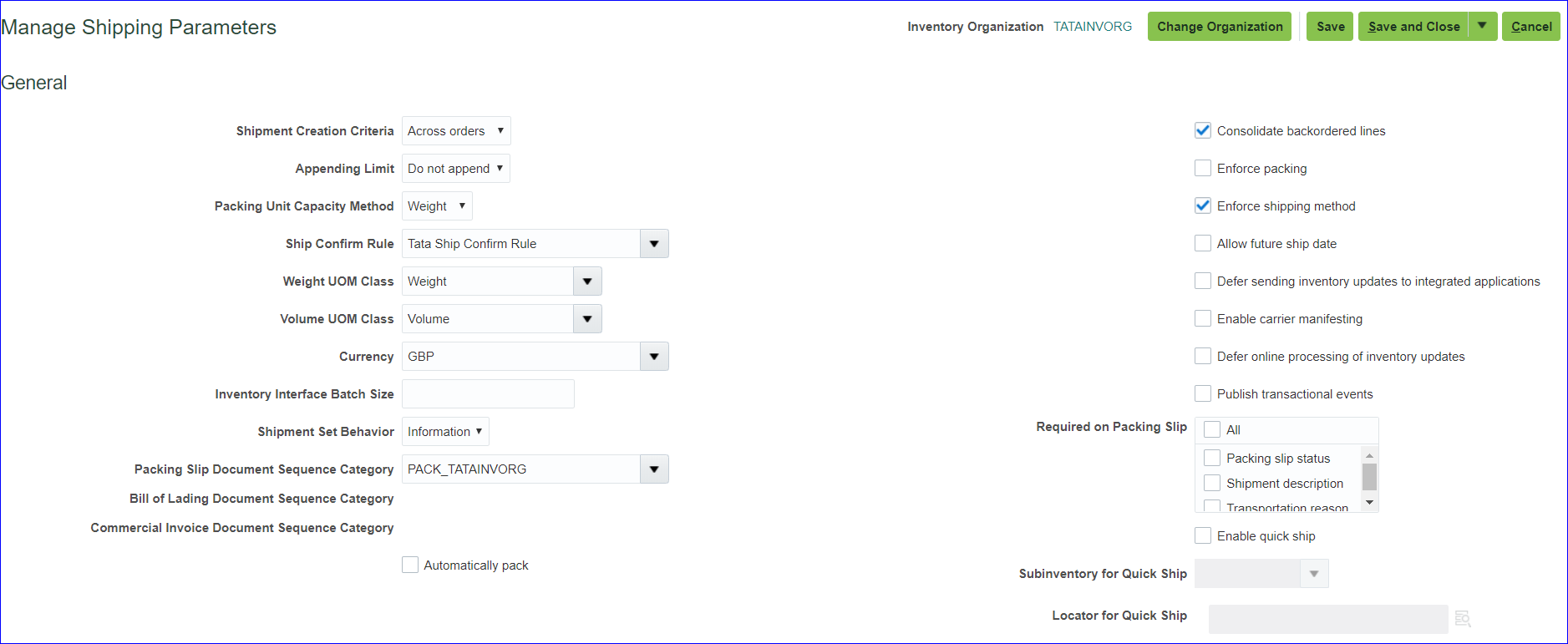
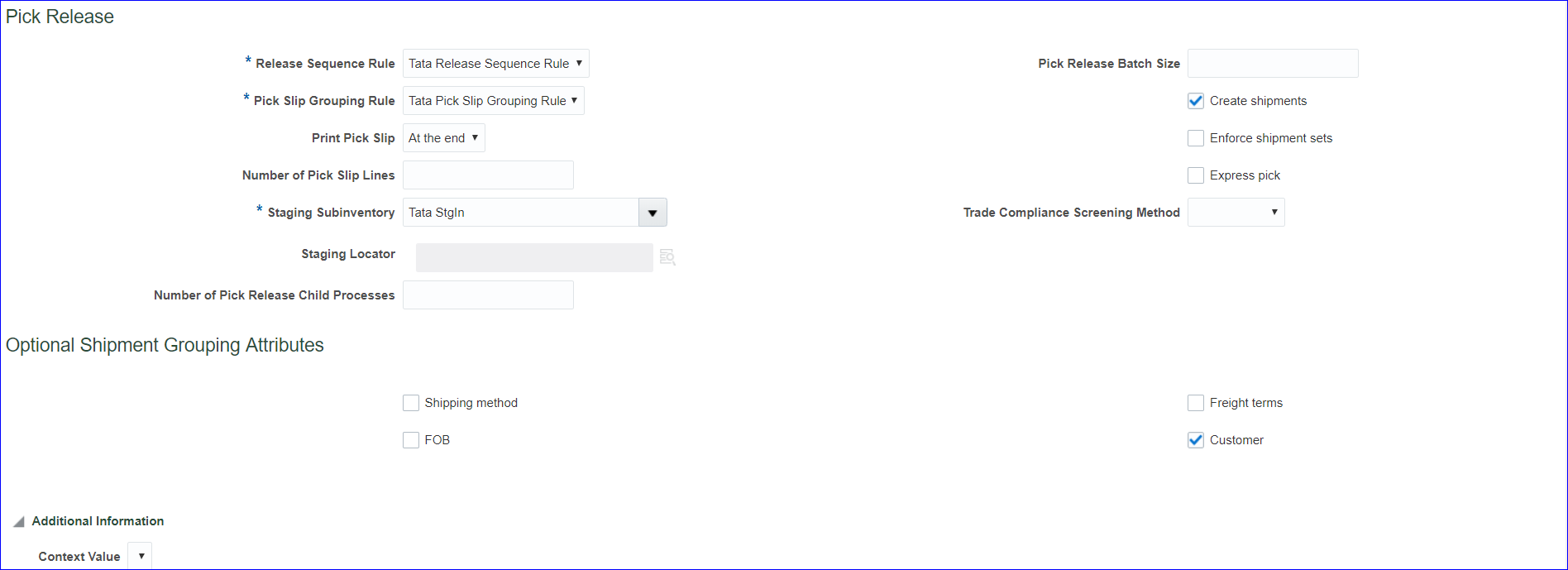 Save and Close
11. Create Collector Refer to Fusion Accounts Receivable
12. Create Payment Terms Refer to Fusion Accounts Receivable
13. Create Statement Cycles Refer to Fusion Accounts Receivable
14. Create Customer profile class Refer to Fusion Accounts Receivable
15. Create Customer, site and address Refer to Fusion Accounts Receivable
16. Setup Customer account description In sales order bill to = Customer account description Implementation project >> Task 'Manage Customers' >> Search your customer >> At Accounts level we can see the Account Description is blank >> Click on account number >> Enter Account description: Tata Customer Account Desc >> Save and Close
17. Assign reference data to BU Refer to Fusion Accounts Receivable
18. Assign Roles to User → Order Manager → Pricing Manager (Code: QP) → Pricing Analyst → Pricing Administrator (Code: QP)
19. Provide data access for user FSM >> Tasks >> Search >> 'Manage Data Access for Users' >> Create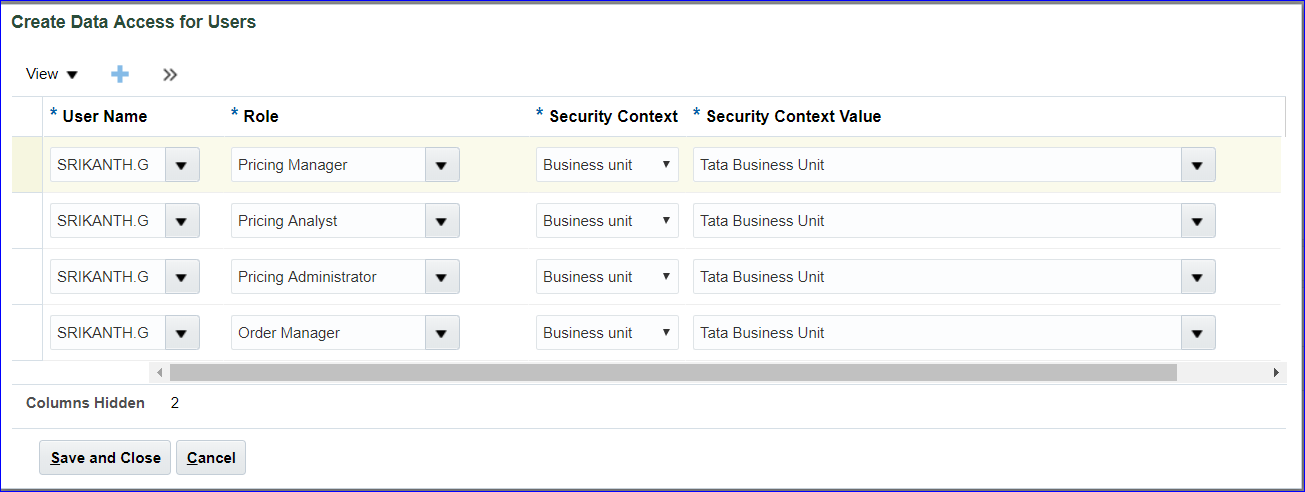 Save and Close
Run 'Retrieve Latest LDAP Changes' job.
Save and Close
Run 'Retrieve Latest LDAP Changes' job.
20. Create Price list Pricing Administration >> Tasks >> Manage Price Lists >> Create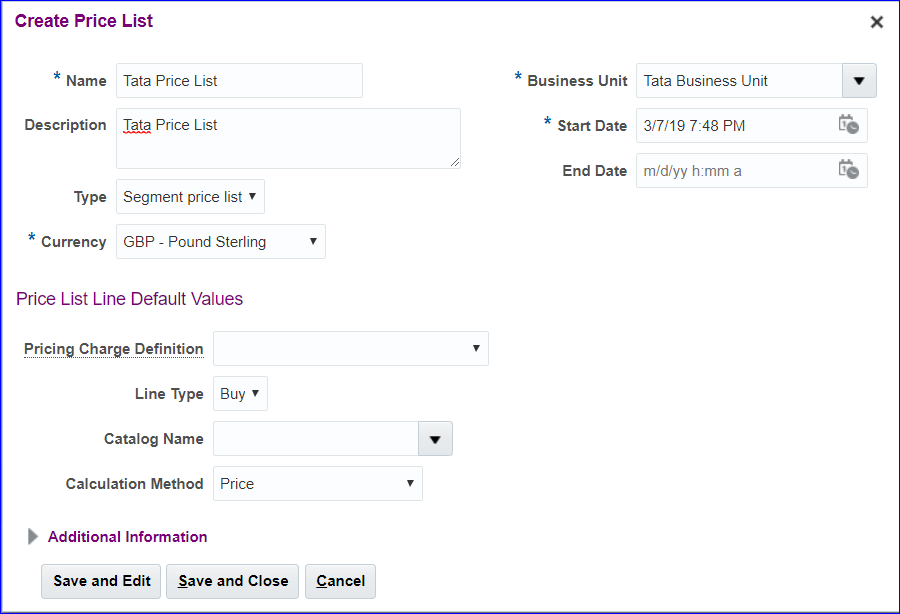 Save and Edit
Under Price List Lines >> Items >> Create
Save and Edit
Under Price List Lines >> Items >> Create
 Create Charge
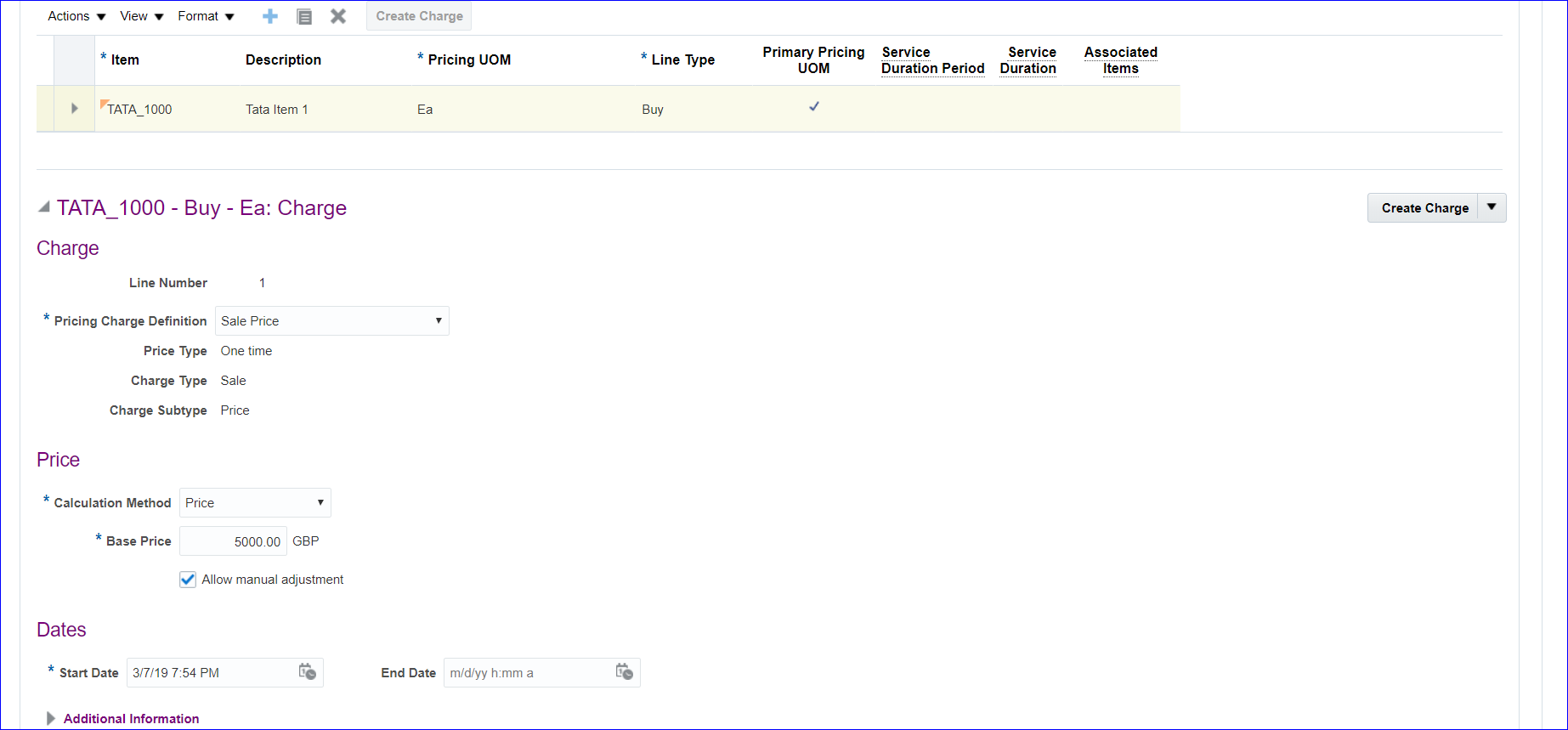 Save and Go to Access Sets tab >> Create >> Enter Set Code: COMMON >> Save >> Approve >> Save and Close >> Search your price list again and make sure the status is Approved.
21. Create Pricing Segment Value (Standard Lookups) FSM >> Tasks >> Search >> 'Manage Standard Lookups' >> In lookup type search with 'ORA_QP_CUST_PRICING_SEGMENTS' >> Create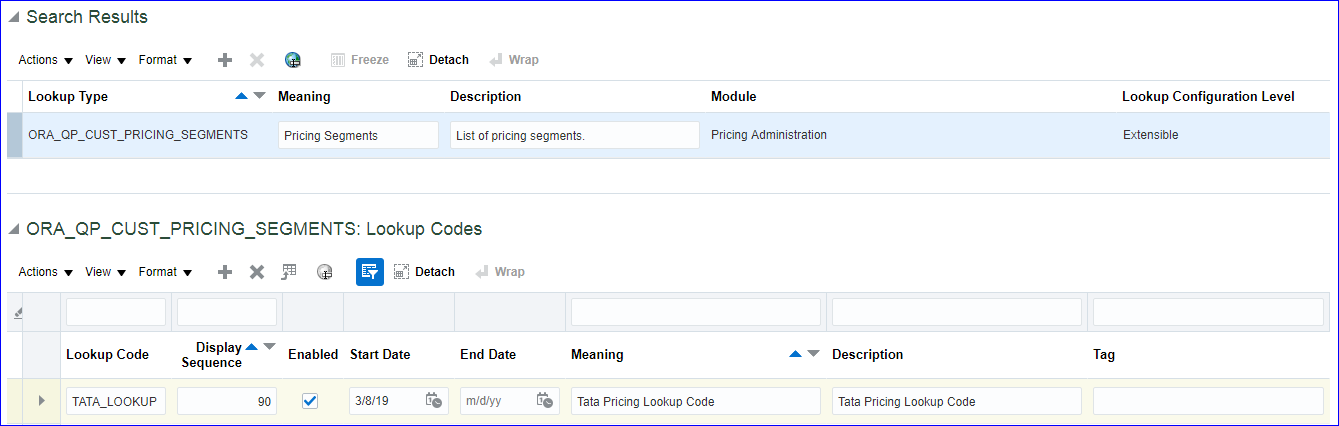 Save and Close
22. Create Pricing Strategy Pricing Administration >> Tasks >> Manage Pricing Strategies >> Create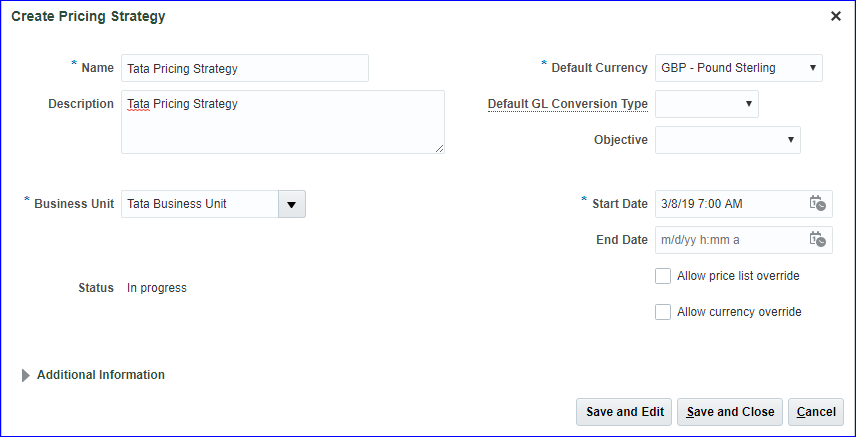 Save and Edit >> Pricing Rules tab >> Price Lists >> Segment Price Lists >> Click on Add >> Search Name: Tata >> Select the line >> Apply >> Ok >> Save >> Approve >> Make sure the status is Approved for Tata Pricing Strategy.
23. Create Customer Pricing Profile Pricing Administration >> Tasks >> Manage Customer Pricing Profiles >> Create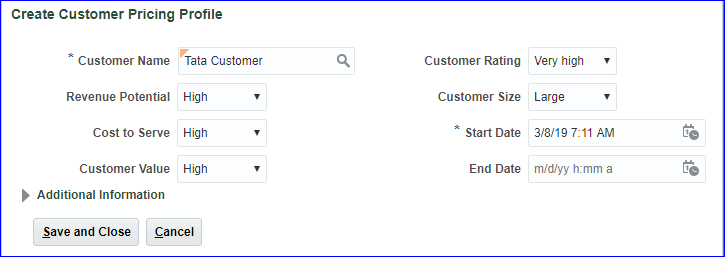 Save and Close >> Done
24. Create Pricing Segments Pricing Administration >> Tasks >> Manage Pricing Segments >> Create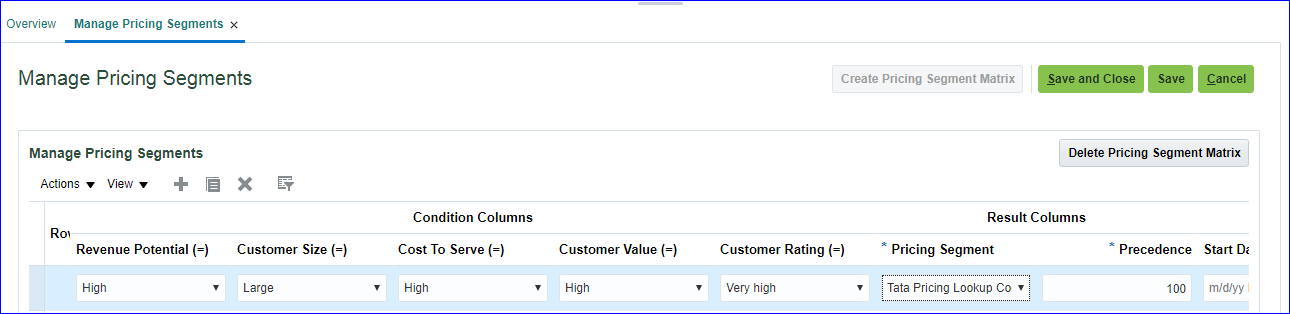 Save and Close
25. Create Pricing Strategy Assignment Pricing Administration >> Tasks >> Manage Pricing Strategy Assignments >> Create >> Select Header line >> Click on Add row at Assignment level (Header-Sales-All-01/01/2016 22:11: Pricing Strategy Assignment Rules)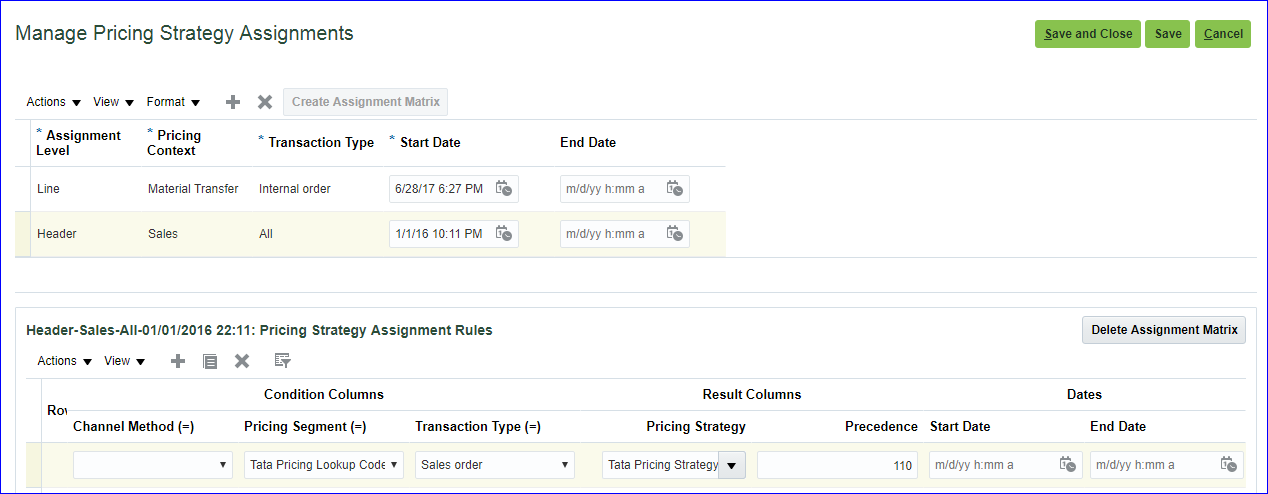 Save and Close
26. Create Carriers (Shipping Methods) FSM >> Tasks >> Search >> 'Manage Carriers' >> Create >> Enter name and Save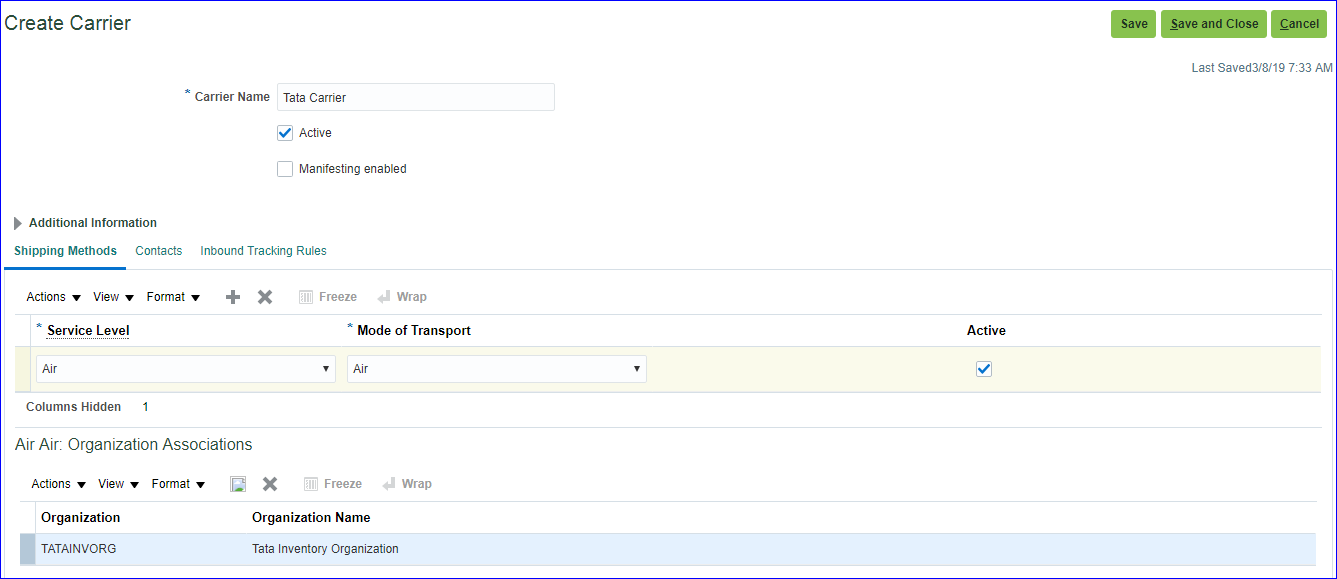 Save and Close
27. Create Transaction Types Not mandatory so can be ignored :)
28. Create Planning Source System Supply Chain Planning >> Plan Inputs >> Tasks >> Manage Planning Source Systems >> Under Source Systems, select the line which code OPS and click on Manage Organization List >> Refresh Organization List >> Search Tata Organization and enable both Inventory organization and Item organization >> Save and Close >> Done
29. Run "Collect Planning Data" Supply Chain Planning >> Plan Inputs >> Tasks >> Collect Planning Data >> Source System: OPS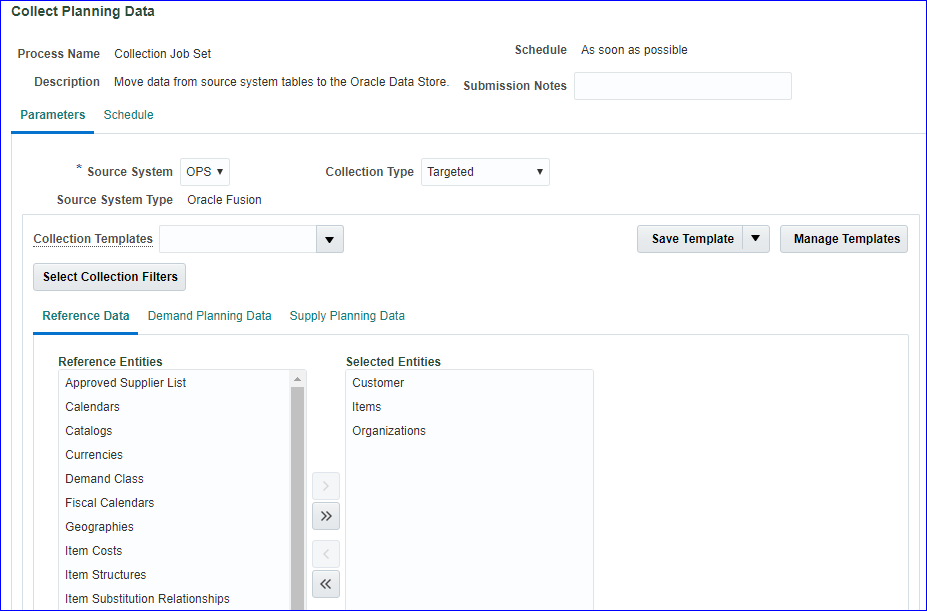 Supply Planning Data tab select On Hand >> Submit
The requests are getting errored due to instance issue :(
Submit the request and continue with 39 and 40 video
Supply Planning Data tab select On Hand >> Submit
The requests are getting errored due to instance issue :(
Submit the request and continue with 39 and 40 video
30. Create Sourcing Rules
31. Setup Sourcing Assignment Set
32. Set profile option: MSP_DEFAULT_ASSIGNMENT_SET
33. Create ATP rules
34. Run "Collect Planning Data"
35. Run "Refresh and Start the Order Promissing Server"
36. Create Sales Order
37. Validate Sales Order
38. Book Sales Order (Submit)
39. Pick Release
40. Confirm Pick Release
41. Confirm Shipping (Ship confirmation)
42. System Interfaces SO Information to AutoInvoice interface
43. Import Sales Order information into AR as AutoInvoice
44. Create Receipt and Apply on Open Transaction
Add 'Order Management' and 'Supply Chain Planning' offerings to Implementation project. 1. Assign Inventory to BU using System Options Implementation project >> Task 'Manage Receivables System Options' >> Search your BU since we already completed this set up in AR
Save and Close
2. Setup Order Management parameters Implementation project >> Task 'Manage Order Management Parameters' (Path: Order Management > Define Orders) >> Select 'Item Validation Organization' and enter BU
Save and Close
3. Create Release Sequence Rules Implementation project >> Task 'Manage Release Sequence Rules' >> Create
Save and Close >> Done
4. Create Pick Slip Grouping Rules Implementation project >> Task 'Manage Pick Slip Grouping Rules' >> Create
Save and Close >> Done
5. Define Ship Confirm Rules Implementation project >> Task 'Manage Ship Confirm Rules' >> Create
Save and Close >> Done
6. Create Picking Rules Implementation project >> Task 'Manage Picking Rules' >> Create
Save and Close
7. Create Picking Rule Assignments Implementation project >> Task 'Manage Picking Rule Assignments' >> Create
Save and Close >> Done
8. Create Pick Wave Release Rules In EBS this is Pick Slip Release Rule. Implementation project >> Task 'Manage Pick Wave Release Rules' >> Create Change the Release Status to 'All' instead of 'Unreleased' as per below image
Options tab
Save and Close
9. Create Staging Subinventory Implementation project >> Task 'Manage Subinventories and Locators' >> Enter Organization (TATAINVORG) >> Create >> Subinventory: Tata StgIn; Description: Tata Staging Subinventory >> Save and Close >> Done
10. Configure Shipping Parameters Implementation project >> Task 'Manage Shipping Parameters'
Save and Close
11. Create Collector Refer to Fusion Accounts Receivable
12. Create Payment Terms Refer to Fusion Accounts Receivable
13. Create Statement Cycles Refer to Fusion Accounts Receivable
14. Create Customer profile class Refer to Fusion Accounts Receivable
15. Create Customer, site and address Refer to Fusion Accounts Receivable
16. Setup Customer account description In sales order bill to = Customer account description Implementation project >> Task 'Manage Customers' >> Search your customer >> At Accounts level we can see the Account Description is blank >> Click on account number >> Enter Account description: Tata Customer Account Desc >> Save and Close
17. Assign reference data to BU Refer to Fusion Accounts Receivable
18. Assign Roles to User → Order Manager → Pricing Manager (Code: QP) → Pricing Analyst → Pricing Administrator (Code: QP)
19. Provide data access for user FSM >> Tasks >> Search >> 'Manage Data Access for Users' >> Create
Save and Close
Run 'Retrieve Latest LDAP Changes' job.
20. Create Price list Pricing Administration >> Tasks >> Manage Price Lists >> Create
Save and Edit
Under Price List Lines >> Items >> Create
Create Charge
Save and Go to Access Sets tab >> Create >> Enter Set Code: COMMON >> Save >> Approve >> Save and Close >> Search your price list again and make sure the status is Approved.
21. Create Pricing Segment Value (Standard Lookups) FSM >> Tasks >> Search >> 'Manage Standard Lookups' >> In lookup type search with 'ORA_QP_CUST_PRICING_SEGMENTS' >> Create
Save and Close
22. Create Pricing Strategy Pricing Administration >> Tasks >> Manage Pricing Strategies >> Create
Save and Edit >> Pricing Rules tab >> Price Lists >> Segment Price Lists >> Click on Add >> Search Name: Tata >> Select the line >> Apply >> Ok >> Save >> Approve >> Make sure the status is Approved for Tata Pricing Strategy.
23. Create Customer Pricing Profile Pricing Administration >> Tasks >> Manage Customer Pricing Profiles >> Create
Save and Close >> Done
24. Create Pricing Segments Pricing Administration >> Tasks >> Manage Pricing Segments >> Create
Save and Close
25. Create Pricing Strategy Assignment Pricing Administration >> Tasks >> Manage Pricing Strategy Assignments >> Create >> Select Header line >> Click on Add row at Assignment level (Header-Sales-All-01/01/2016 22:11: Pricing Strategy Assignment Rules)
Save and Close
26. Create Carriers (Shipping Methods) FSM >> Tasks >> Search >> 'Manage Carriers' >> Create >> Enter name and Save
Save and Close
27. Create Transaction Types Not mandatory so can be ignored :)
28. Create Planning Source System Supply Chain Planning >> Plan Inputs >> Tasks >> Manage Planning Source Systems >> Under Source Systems, select the line which code OPS and click on Manage Organization List >> Refresh Organization List >> Search Tata Organization and enable both Inventory organization and Item organization >> Save and Close >> Done
29. Run "Collect Planning Data" Supply Chain Planning >> Plan Inputs >> Tasks >> Collect Planning Data >> Source System: OPS
Supply Planning Data tab select On Hand >> Submit
The requests are getting errored due to instance issue :(
Submit the request and continue with 39 and 40 video
30. Create Sourcing Rules
31. Setup Sourcing Assignment Set
32. Set profile option: MSP_DEFAULT_ASSIGNMENT_SET
33. Create ATP rules
34. Run "Collect Planning Data"
35. Run "Refresh and Start the Order Promissing Server"
36. Create Sales Order
37. Validate Sales Order
38. Book Sales Order (Submit)
39. Pick Release
40. Confirm Pick Release
41. Confirm Shipping (Ship confirmation)
42. System Interfaces SO Information to AutoInvoice interface
43. Import Sales Order information into AR as AutoInvoice
44. Create Receipt and Apply on Open Transaction